Overview
In your account, you have the possibility to decide for which transactions you would like to be notified.
Instructions
To change your notification setting, log into your account and do as follows:
1. Click "Settings"
2. Select Notification Settings:
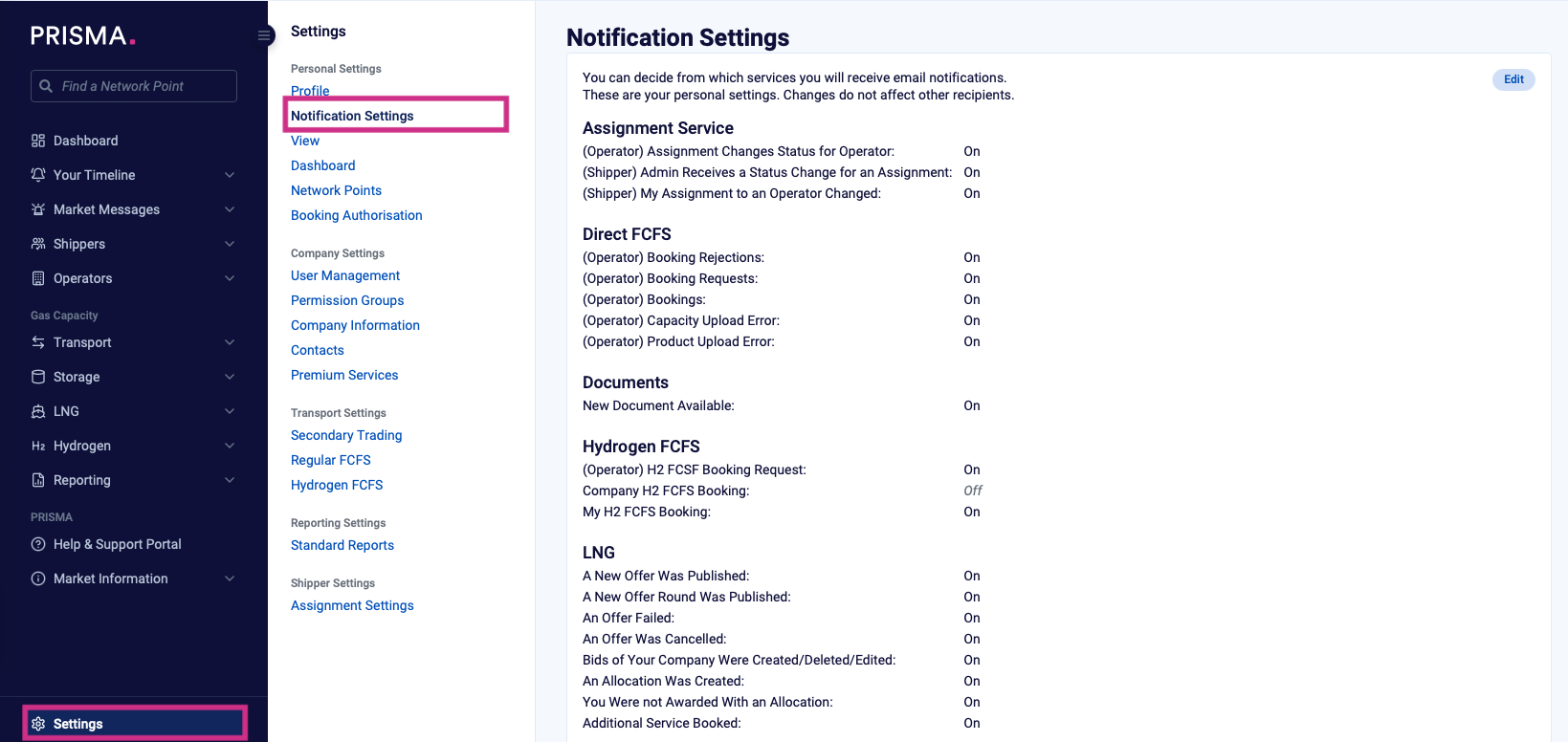
3. Click "Edit" in the notifications card
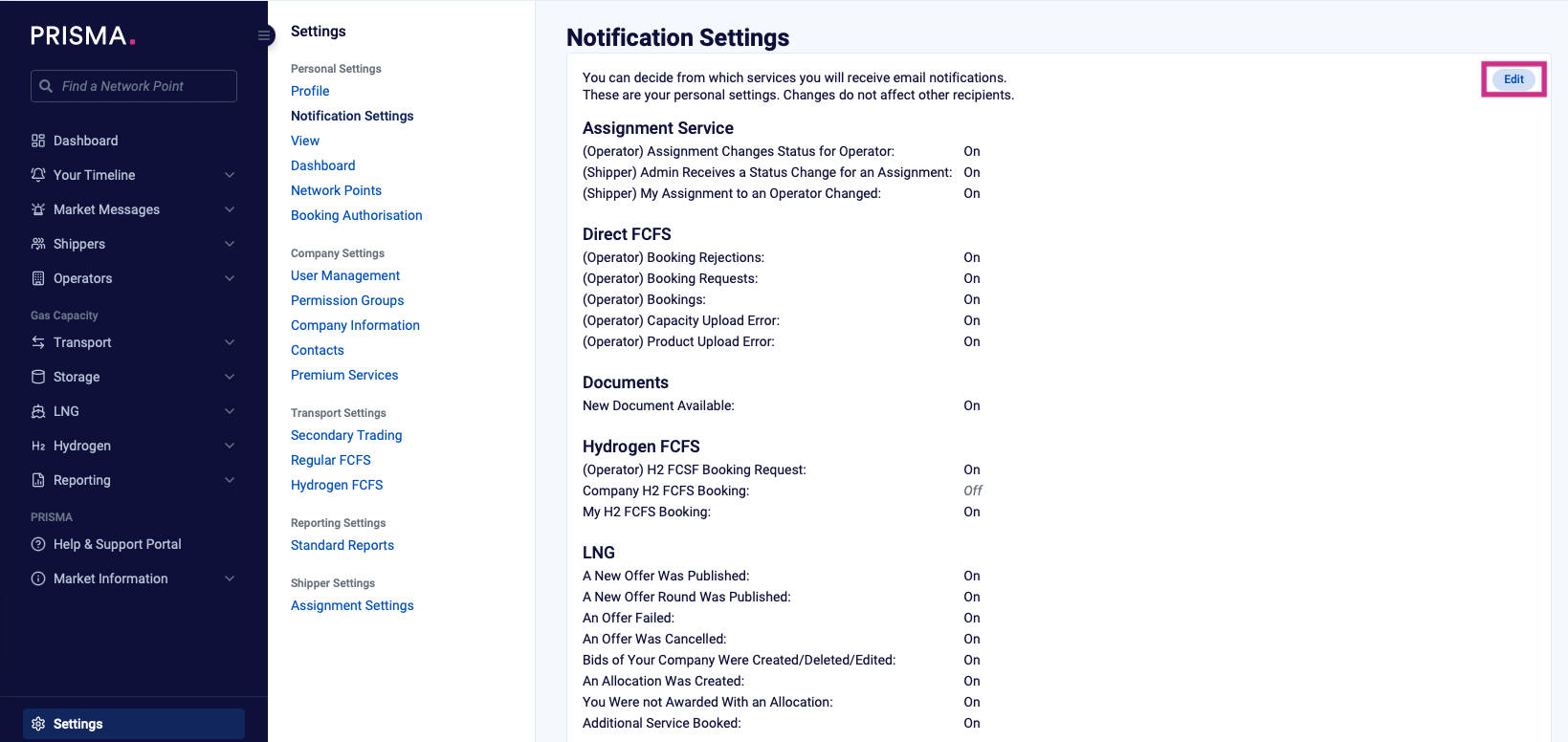
4. Perform the necessary changes
5. Save your changes
Notifications New
Overview
In your account, you can manage how and for which activities you would like to receive notifications.
To ensure confidentiality, notification emails do not contain personal or commercially sensitive information. Instead, emails include a link to the relevant notification card in the platform, where full details are available.
Notifications are displayed in the "Your Timeline" section and consist of:
- email notification
- UI notification card
By default, both email and UI notifications are enabled.
Instructions
To change your notification settings proceed as follows:
1. Log in to your account
2. Click "Settings" in the main navigation.
3. Select Notification Settings
4. In the notifications card, click Edit

5. Adjust your notification preferences as required:
- Enable or disable email notifications
- Enable or disable UI notifications
Note: Email-only notifications are not available. If a notification type is disabled, no notification will be generated. Notifications can not be generated retroactively.
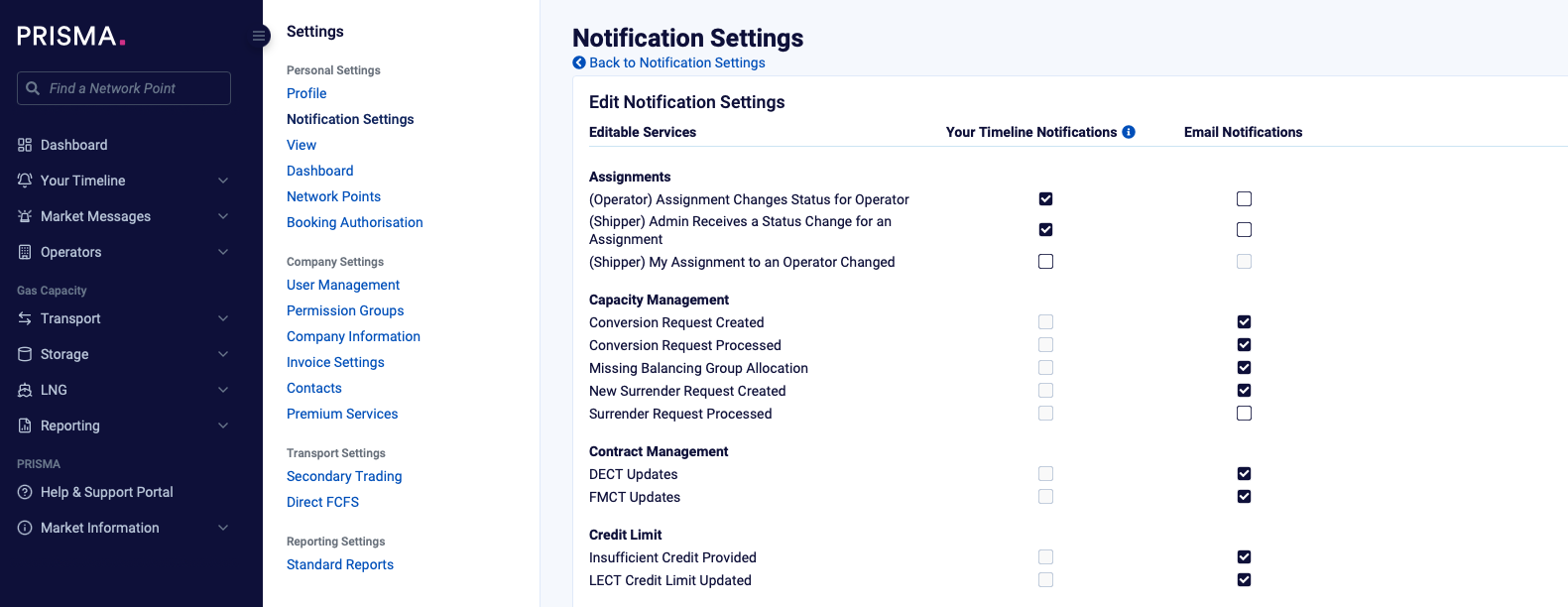
6. Click Save to apply your changes.
Additional Information:
When accessing notifications for the first time, a guided tour may be displayed to explain the notification cards and timeline view.