
Overview
PRISMA uses two-step verification: when you log in, you enter your password and a verification code from a mobile token. A mobile token is an authenticator app on your phone that generates a new six-digit code at short, regular intervals.
Once Customer Success has processed your registration, you receive a confirmation email with a temporary password. On your first login, you change that password, link your authenticator app to your PRISMA account, and add a fallback mobile number.
Your temporary password is valid for 24 hours. If it expires, contact Customer Success to receive a new one.
Before You Start
Install an authenticator app on your phone. PRISMA works with any app that can scan a QR code to set up a token, for example:
| App | Android | iPhone |
|---|---|---|
| Google Authenticator | Google Play | App Store |
| Microsoft Authenticator | Google Play | App Store |
| 2FA Authenticator (2FAS) | Google Play | App Store |
Setting Up Your Mobile Token
Step 1: Log In with Your Temporary Password
- Go to the PRISMA login page, or click Login at the bottom of the left sidebar.
- Enter your email address in the Email Address field and your temporary password in the Password field.
- Click Continue.
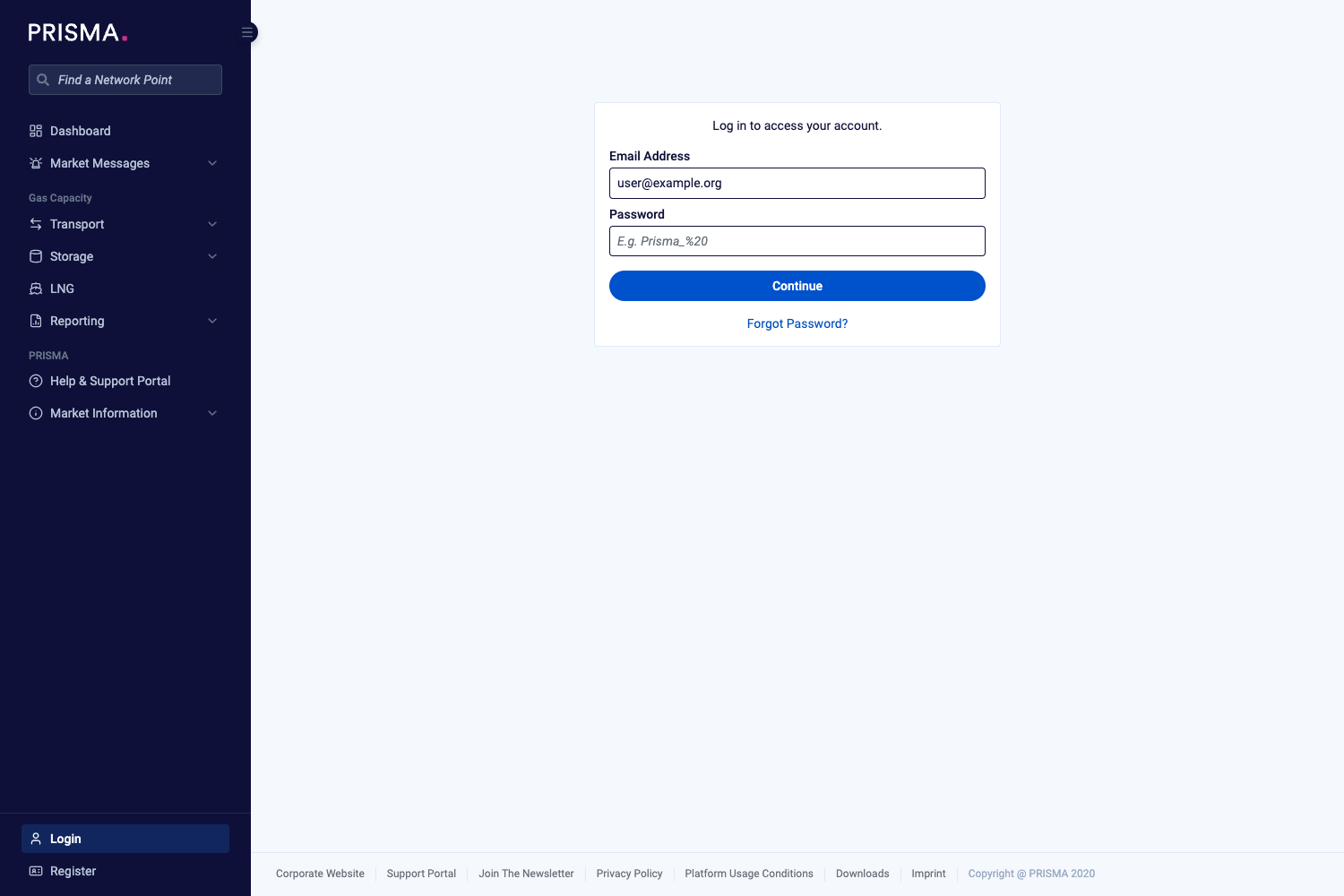
The login page.
Step 2: Change Your Password
PRISMA asks you to replace your temporary password with your own. Your new password must be at least 16 characters long and contain at least 1 upper case letter, 1 lower case letter, 1 number and 1 special character.
- Enter your new password in the New Password field.
- Enter the same password again in the Confirm Password field.
- Click Change.
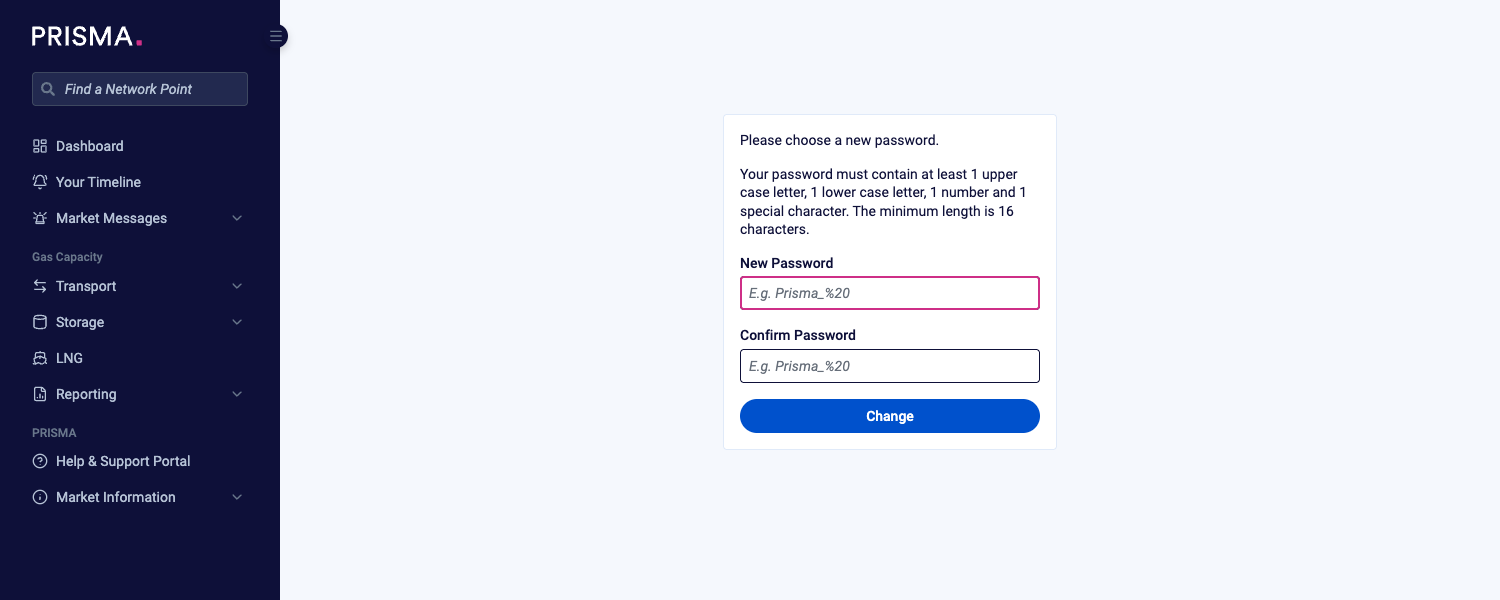
The password change form, with the password rules above the fields.
Step 3: Link Your Authenticator App
- Open your authenticator app and add a new account by scanning the QR code shown on PRISMA. If you can't scan the code, enter the key shown below the QR code in your app instead.
- Enter the six-digit code your app generates in the Verification Code field.
- Click Continue. PRISMA also continues on its own as soon as you enter all six digits.
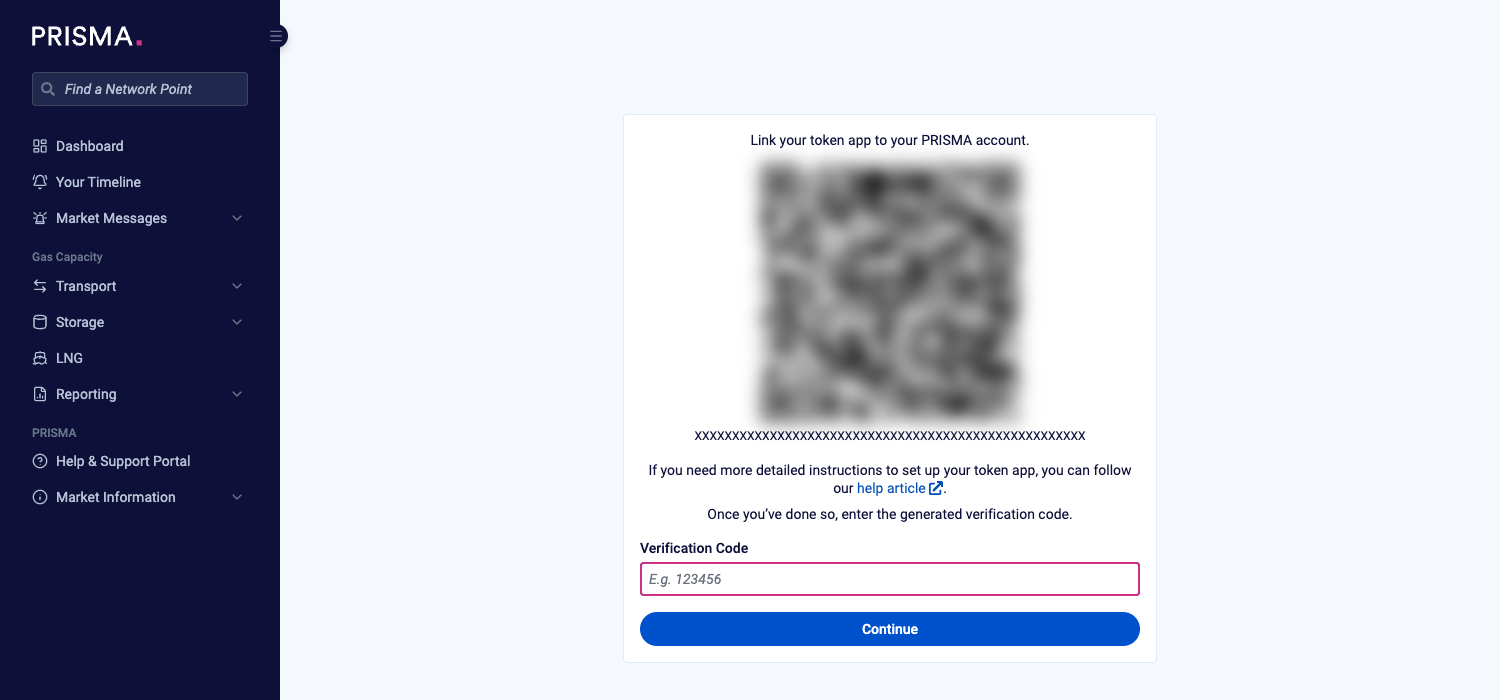
The token setup screen. The QR code and key in this example are blurred: always scan the code shown on your own screen.
Note: The QR code expires after a while. If PRISMA tells you it has expired, log in again to get a new one. For further information, please consult: Mobile Token - How to Generate a New QR code
Step 4: Add a Fallback Mobile Number
If you ever lose access to your token, PRISMA can send a fallback code to this number by SMS.
- Select your country code and enter your mobile number in the Mobile field.
- Click Continue. PRISMA sends an SMS with a verification code to that number.
- Optional: To set up the fallback number later, click Remind me later. Continue to the Platform. instead.
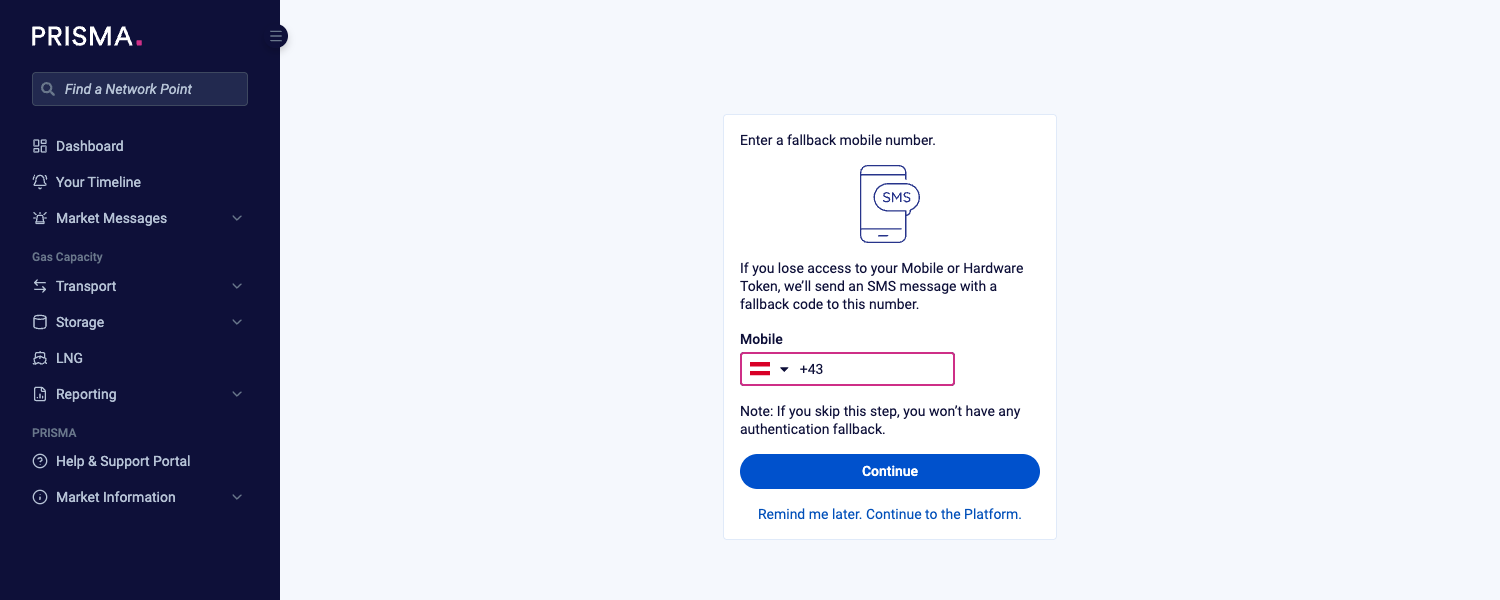
The fallback number form, with the option to set it up later below the Continue button.
If you skip this step, you have no fallback if you lose access to your token.
- Enter the code from the SMS in the Code field.
- Optional: If the SMS doesn't arrive, check the number in the Mobile field, correct it if needed, and click Resend Code.
- Click Continue.

The confirmation form for your fallback number.
Step 5: Finish the Setup
PRISMA confirms that your token setup is complete. Click Continue to the Platform to start using PRISMA. From now on, you log in with your new password and a code from your authenticator app.
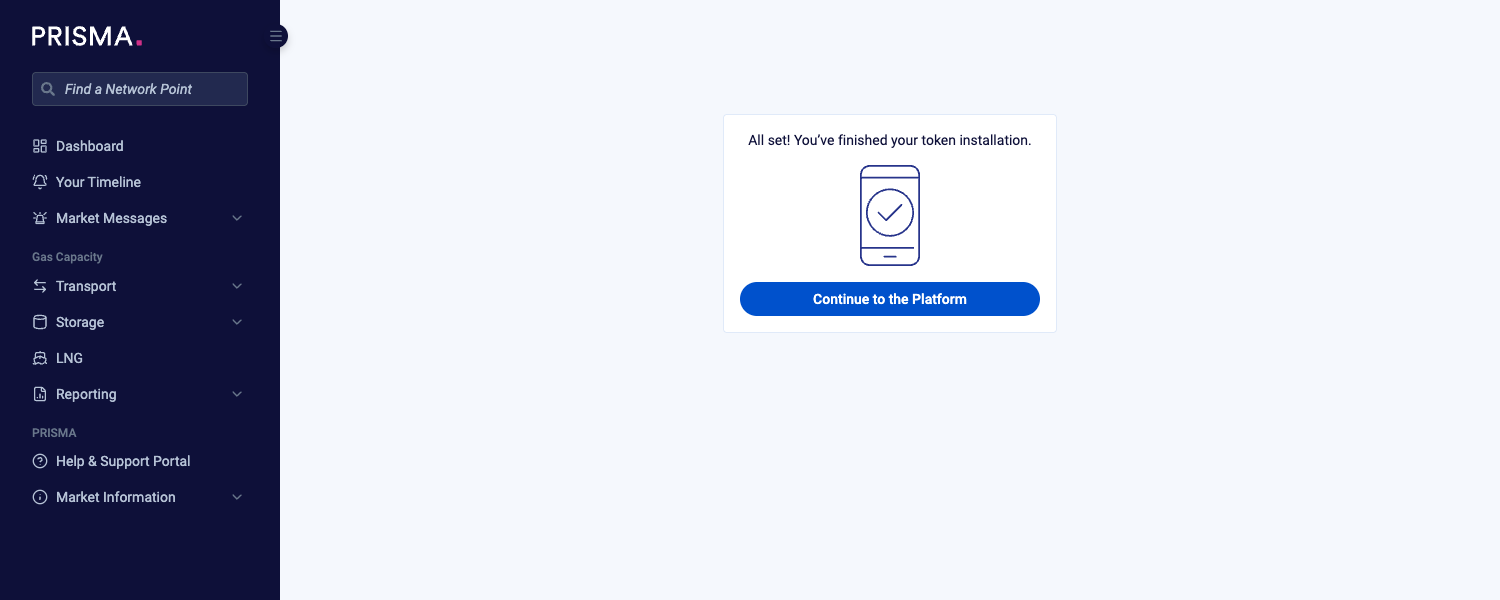
The confirmation that your token setup is complete.
If you get a new phone, please consult: I got a new phone. How can I get another QR-code to reactivate my mobile token?