
Overview
The Activity feed lists your recent transactions on PRISMA, including bids, bookings, surrenders and secondary trades. It covers a rolling window of days, so you can check the status of recent activities without running a report.
Depending on your platform settings, the feed shows either your own activities or those of your whole company.
Opening Your Activity Feed
To open your Activity feed, do as follows:
1. Log into PRISMA.
2. In the left sidebar, click Your Timeline.
3. Click Activity.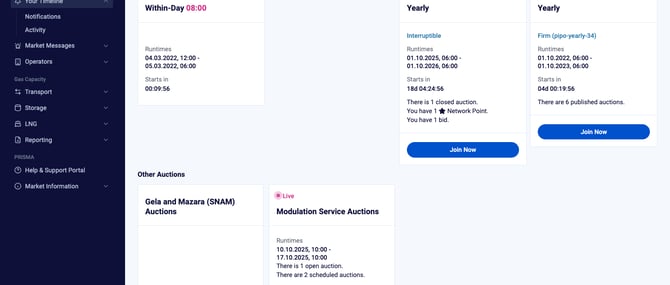
The left sidebar with Your Timeline expanded and the Activity link underneath.
PRISMA displays your activities as cards, with the most recent activity first.
Filtering Your Activities
Use the filter panel on the left of the Activity feed to narrow down the list. You can combine the following filters:
| Filter | What it does |
|---|---|
| Transaction status | Shows open activities, closed activities, or all activities. |
| Network point | Shows activities at the network point you type into the search field. |
| Transaction type | Shows only the selected transport or storage transaction types, for example auctions, secondary trading, First-Come-First-Served (FCFS) bookings, surrenders or comfort bids. |
| Activity date | Shows activities between the From and To dates and times you enter. |
Editing or Deleting an Activity
You can change an activity only while its auction is still open. To edit an activity, click the edit icon in the ACTIONS area of its card. To delete an activity, click the delete icon in the same area. If an activity card has no ACTIONS area, you can no longer change that activity.
Finding Older Transactions
The Activity feed shows recent transactions only. To find transactions that are older than the feed's rolling window, use the reporting section. For further information, please consult: Reporting - Where to Find and Download Your Company's Reports?
Viewing Company Transactions
For a table of your company's transactions, click Company Transactions in the left sidebar, then click Transport, LNG or Storage. On the Transport page, the tabs split transactions by type, for example Auction Allocations, FCFS Bookings and Secondary. To narrow down the table, click the filter icon at the top right of the Active Filter bar. To export the table, click XLSX.
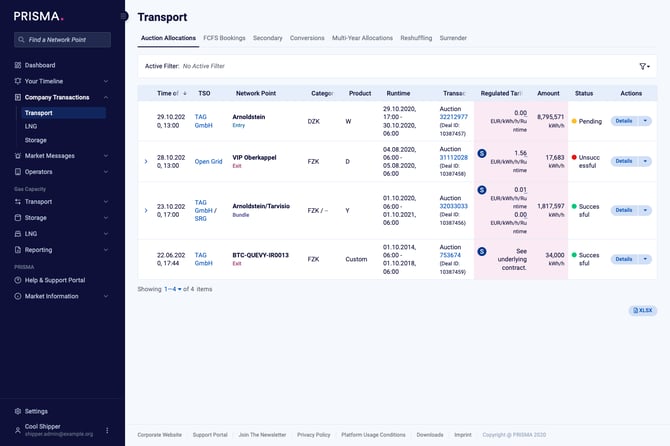
The Transport page under Company Transactions, showing the Auction Allocations tab.