
Overview
To book capacity on PRISMA, you need at least one assignment to an operator: a Transmission System Operator (TSO), a Storage System Operator (SSO) or a Liquefied Natural Gas System Operator (LSO). After your organisation registers on PRISMA, the shipper admin requests assignments to the operators your organisation wants to book capacity from.
Each assignment has two parts. The organisation assignment covers your company, and the user assignment covers you as an individual user. You need both to book capacity with that operator.
Operators do not approve assignments automatically. Each operator sets its own registration requirements, which you can check on the Market Participants page.
For further information on requesting an assignment, please consult: How to Request Assignments to Operators?
Viewing Your Assignments
To view your assignments, do as follows:
- Log into PRISMA.
- In the left sidebar, click Operators, then Assignments.
PRISMA shows a table of your assignments, with one row for each operator and user.
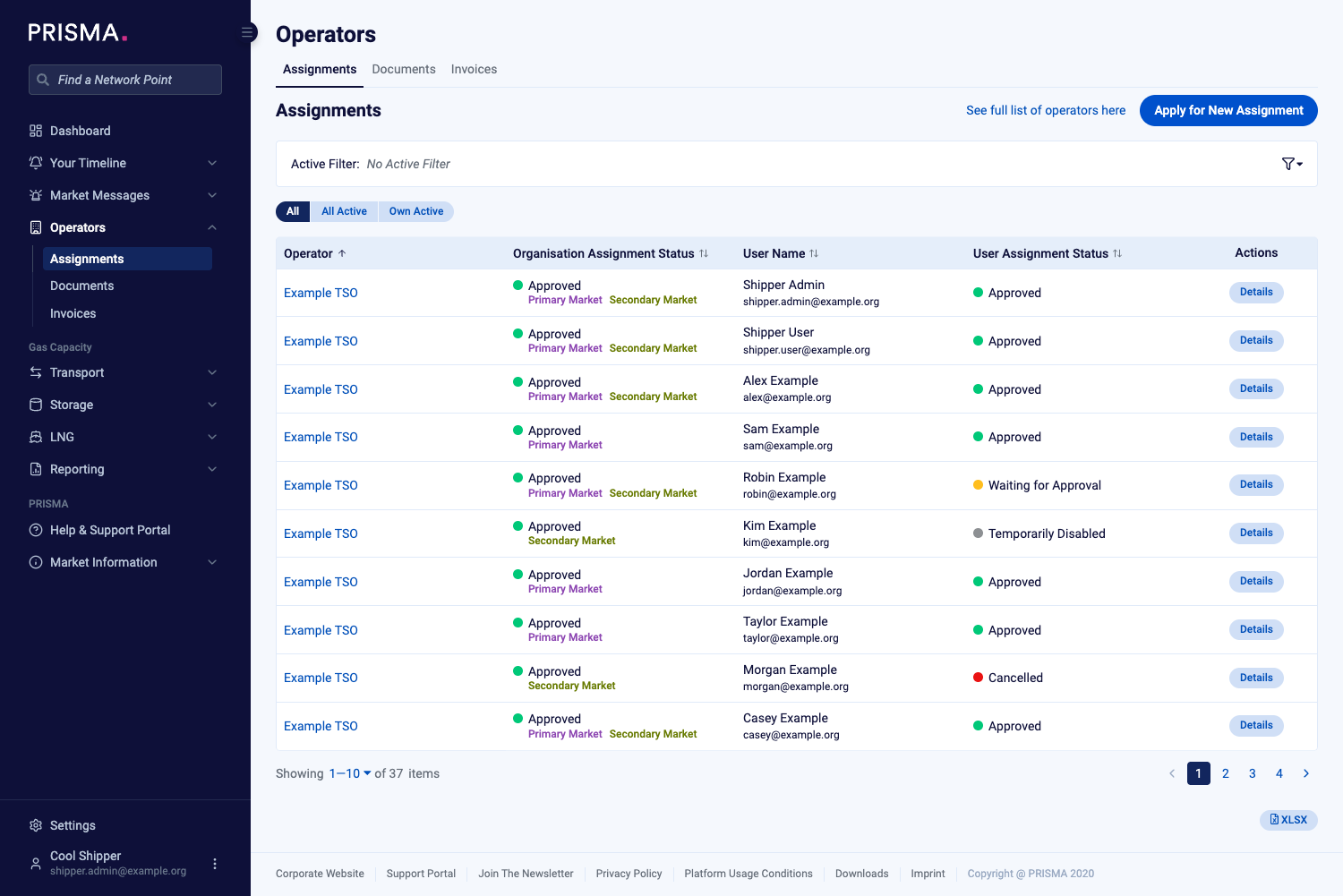
The Assignments page under Operators, listing each assignment with its Organisation Assignment Status and User Assignment Status.
The table has the following columns:
| Column | What it shows |
|---|---|
| Operator | The operator the assignment is with. |
| Organisation Assignment Status | The status of your company's assignment with the operator, and whether it covers the Primary Market, the Secondary Market, or both. |
| User Name | The user the row refers to, with their email address. |
| User Assignment Status | The status of that user's assignment with the operator. |
| Actions | The Details button, which opens the assignment details page. |
To narrow down the list, click All, All Active or Own Active above the table, or click the filter icon at the right of the Active Filter bar. To export the list, click XLSX below the table.
Assignment Statuses
| Status | Meaning |
|---|---|
| Waiting for Approval | The operator has not yet decided on the assignment request. |
| Approved | The operator has approved the assignment. |
| Temporarily Disabled | The operator has paused the assignment for now. |
| Cancelled | The assignment has ended, either because you cancelled it or because the operator did. |
For further information on what happens after you send a request, please consult: What do I do after I have requested an assignment with an operator?
Viewing the Details of an Assignment
To open the details of an assignment, click Details in its row. The details page shows the following sections.
Operator Contacts and Assignment Status
The top of the page shows the operator's address and contact details, the Assignment Contacts for questions about your assignment, and the Postal Address for Documents. Below them, Organisation Assignment shows your company's status and My Assignment Status shows your own.
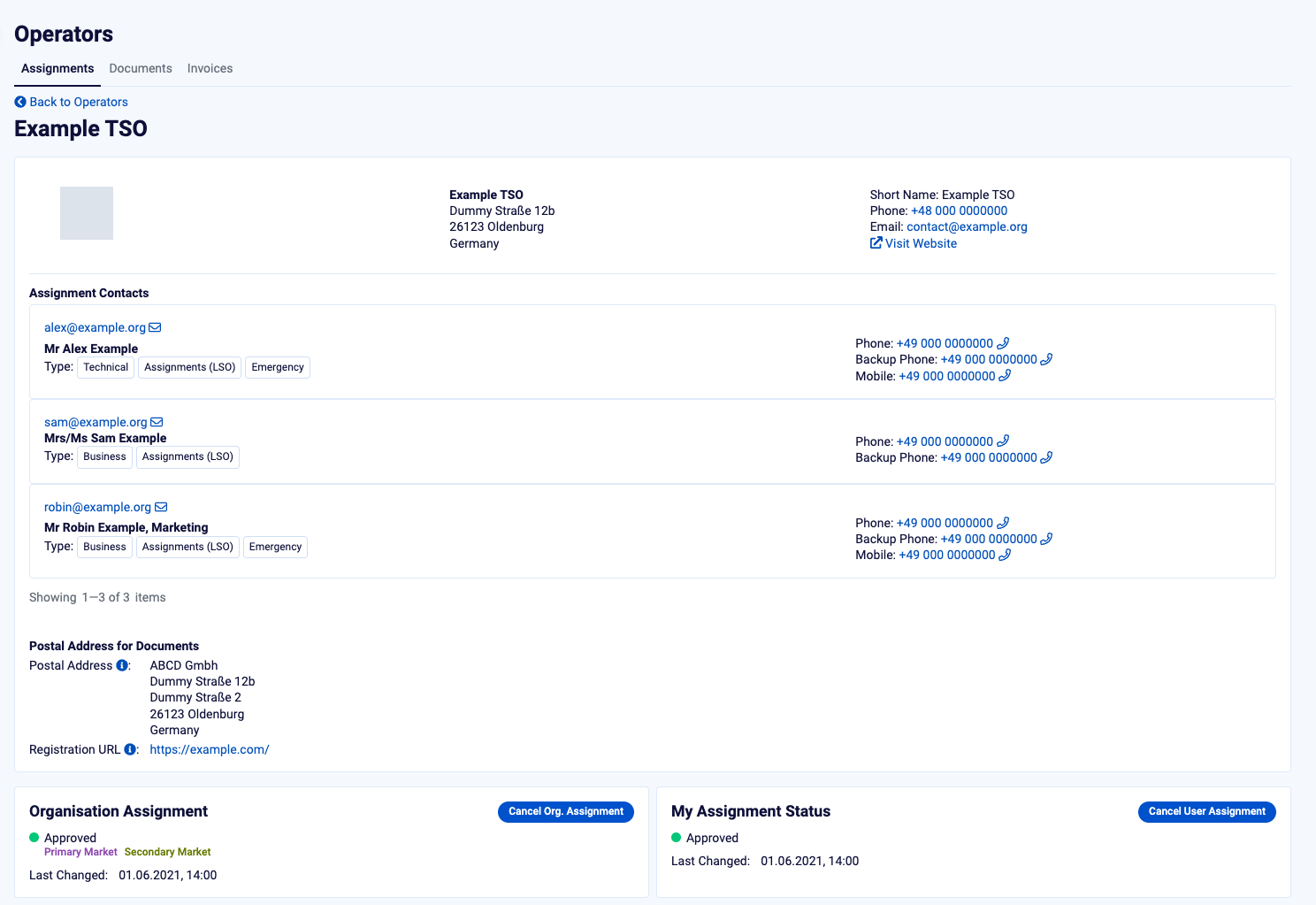
The top of the assignment details page, with the Organisation Assignment and My Assignment Status panels at the bottom.
To cancel your company's assignment, click Cancel Org. Assignment. To cancel only your own assignment, click Cancel User Assignment. For further information, please consult: How to Cancel an Operator Assignment?
Documents
The Documents section lists the operator's general terms and conditions and the documents the operator requires for an assignment. The list separates what a new organisation must provide from what each new user must provide, and shows whether the operator accepts each document by email, by post, or both.
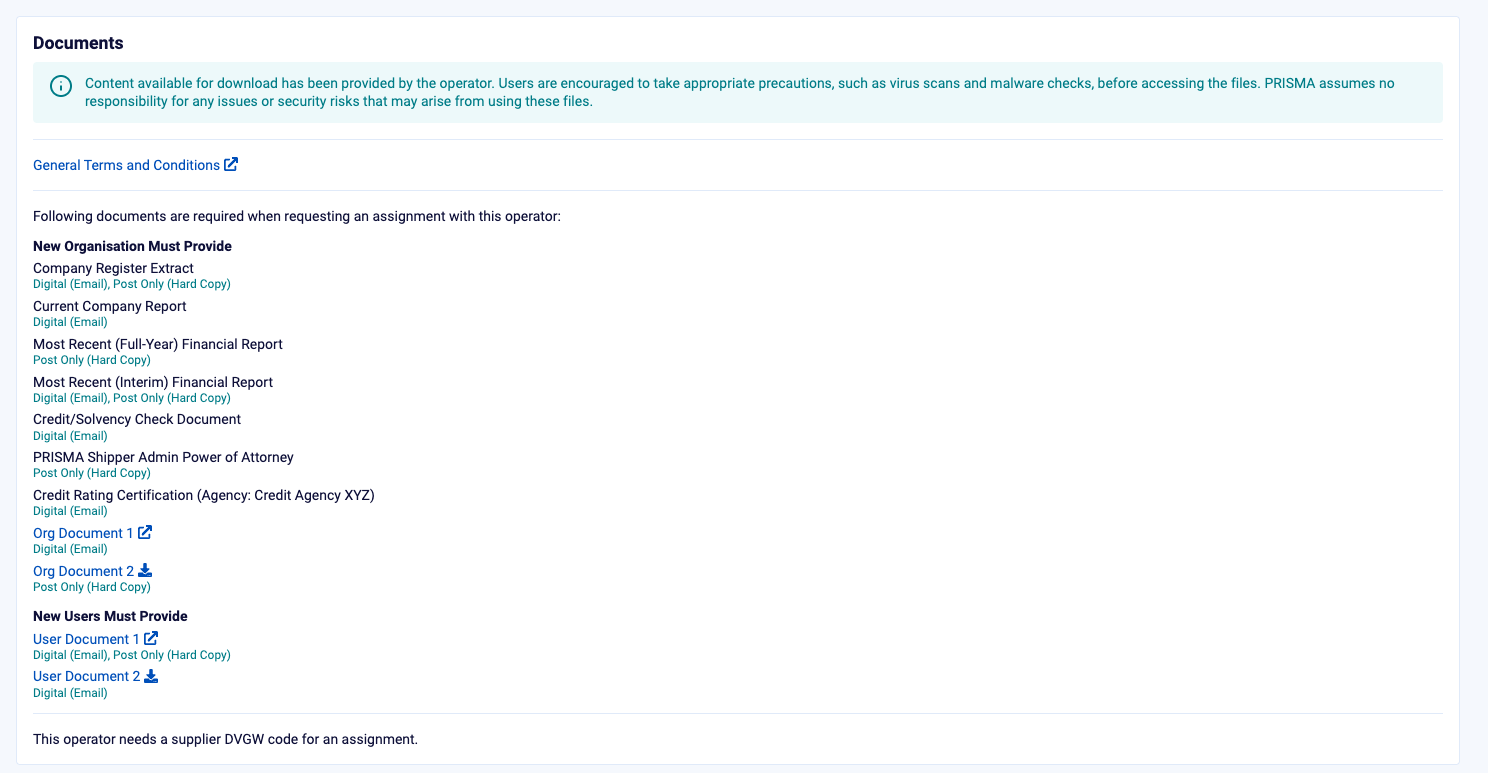
The Documents section of the assignment details page.
Balancing Groups, Credit Limits and Portfolio Codes
Further down, the page lists the Balancing Groups, Credit Limits and Portfolio Codes the operator has set up for your company, where there are any. To download one of these lists, click CSV at the top right of its section.
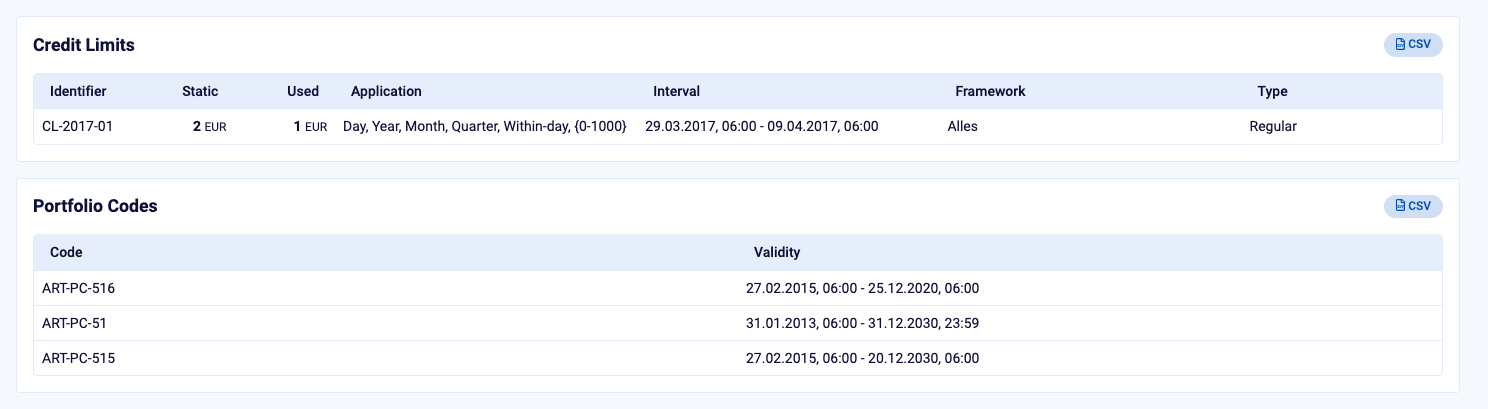
The Credit Limits and Portfolio Codes sections, each with a CSV download button.
For further information, please consult: How to Check Your Credit Limits? and How to View Balancing Groups and Portfolio Codes?