
Overview
If you have an active PRISMA account, you log in with your email address, your password and a six-digit verification code. The code comes from your mobile token or from your hardware token.
If you are logging in for the first time and haven't set up your token yet, please consult: Mobile Token: How to Set Up Your Mobile Token?
Logging In
To log into PRISMA, do as follows:
- Go to the PRISMA login page, or click Login at the bottom of the left sidebar.
- Enter your email address in the Email Address field and your password in the Password field.
- Click Continue.
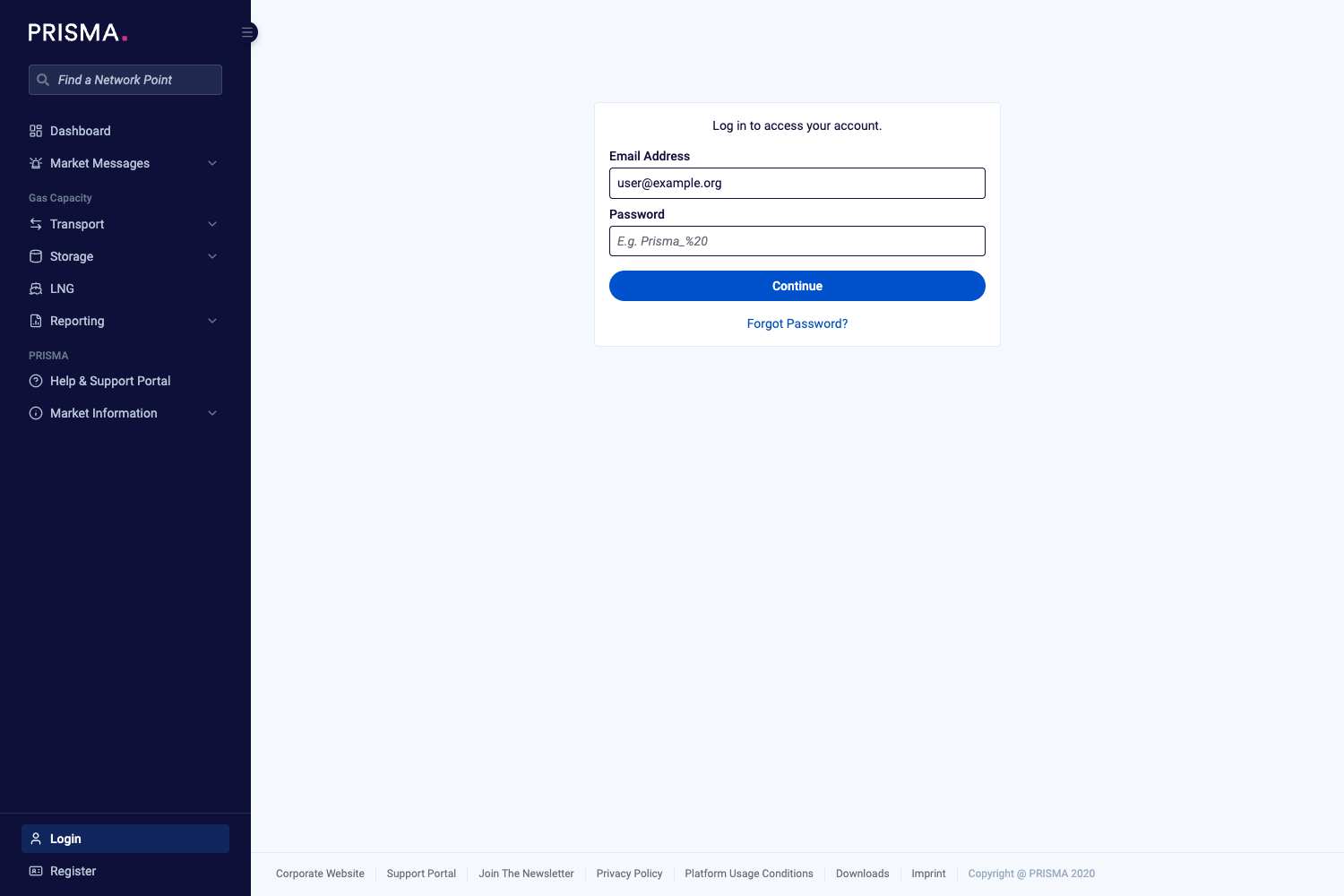
The login page.
- Open your authenticator app, or press the button on your hardware token, to get a six-digit code.
- Enter the code in the Verification Code field.
- Click Log in. PRISMA also logs you in on its own as soon as you enter all six digits.
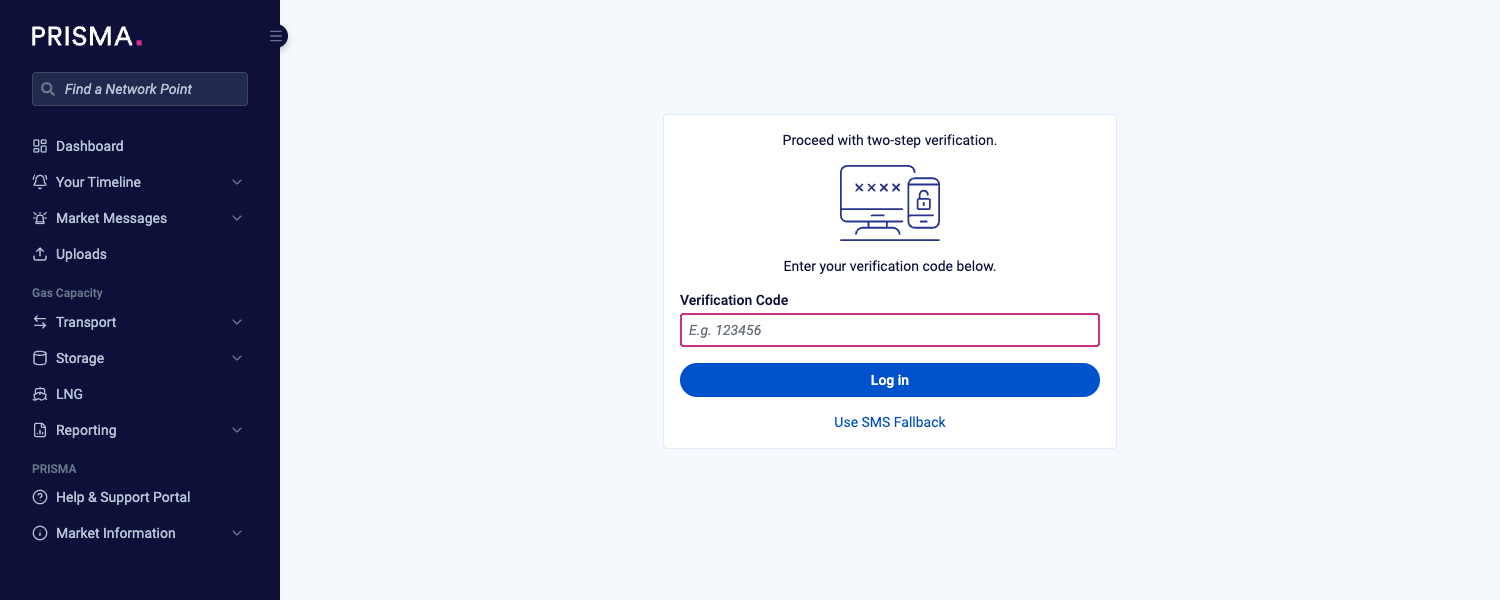
The two-step verification screen, with the Use SMS Fallback link below the Log in button.
You are now logged into PRISMA.
If you don't remember your password, click Forgot Password? on the login page. For further information, please consult: How to Reset a Forgotten Password?
Logging In to Your Last Used Account
If you have logged in on the same browser before, PRISMA remembers your account and shows it on the login page. Enter your password and click Continue, then follow steps 4 to 6 above. To log in with another account, click Log in With a Different Account.

The login page when PRISMA remembers your last used account.
If You Don't Have Your Token
If you have set up a fallback mobile number, you can log in with a code sent by SMS instead:
- On the two-step verification screen, click Use SMS Fallback.
- Enter the code from the SMS in the Verification Code field.
- Click Log in.
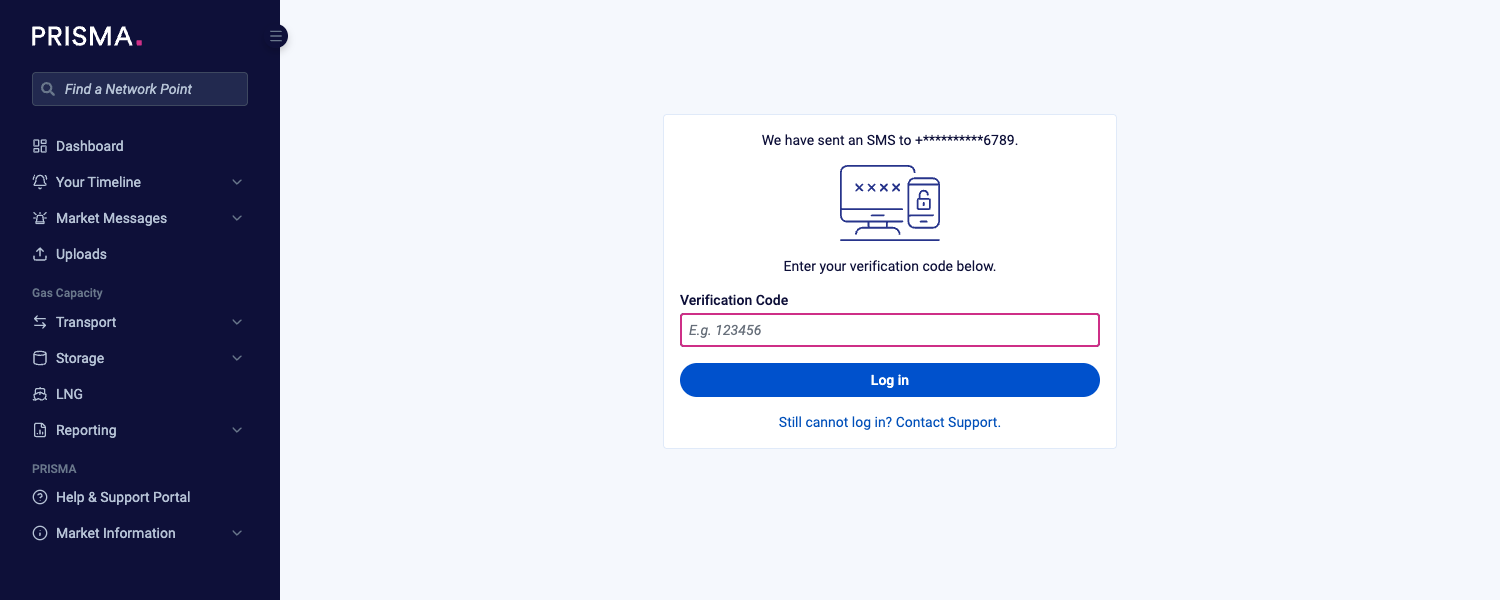
The SMS verification screen, showing the last digits of the number PRISMA sent the code to.
If you haven't set up a fallback mobile number, PRISMA can't send you an SMS. In that case, or if you still can't log in, click Still cannot log in? Contact Support or contact the PRISMA support team.
If you are waiting for a hardware token, please consult: Hardware Token - How to Log in While You Wait for Your Hardware Token?