
Overview
Every network point on PRISMA has its own page. It shows the general information about the point, the auctions that are running there and, if you are logged in as a shipper, your own activity at the point.
This article shows you how to find a network point, what the page contains and how to bid on an auction that is open at the point.
Finding a Network Point
To find a network point by name, type its name, marketer or ID in Find a Network Point at the top of the left sidebar, then select it from the results.
To browse all network points, click Transport in the left sidebar, then Network Points. Filter the table if needed, then click the name of the network point, or click Details in its row.
To download the network points currently shown in the table, click CSV below the table.
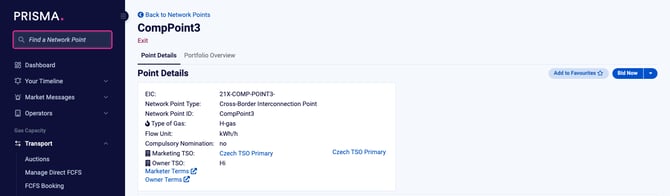
The Find a Network Point search field at the top of the left sidebar.
For further information on filtering the list, please consult: How to Use Quick Filters?
What the Page Shows
The page opens on the Point Details tab. Depending on the network point and your user type, further tabs appear next to it, such as Availability & Price Data, Capacity Overview and, for shippers, Portfolio Overview.
The Point Details tab contains the following sections:
| Section | What it shows |
|---|---|
| Point Details | General information about the network point, such as the operator, the capacity categories and the product types. |
| Recent Auction Activities | Auctions at this point that ended recently. |
| Auctions Now at This Point | The long-term and short-term auctions that are currently running at this point. |
| Your Activity - Last 30 Days | Your bids and transactions at this point in the last 30 days (shippers only). Depending on your company's settings, this section is called Your Company's Activity - Last 30 Days. |
| Trade Proposals at This Point | Secondary market trade proposals at this point. |
| Surrendered Capacity at This Point | Capacity that shippers have surrendered at this point, where this applies. |
To add the network point to your favourites, click Add to Favourites at the top right of Point Details. For further information, please consult: How to Add Favourite Network Points?
Bidding on an Open Auction
When at least one auction is running at the network point, shippers see a Bid Now button at the top right of Point Details.
To bid on an open auction from the network point page, do as follows:
- Click Bid Now. The page scrolls down to Auctions Now at This Point.
- Find the auction in the Long Term or Short Term table.
- In the auction's row, click Bid. The auction details page opens, where you place your bid.
- Optional: For a short-term auction, you can bid without leaving the page instead: click the arrow at the start of the auction's row to show the bidding form.
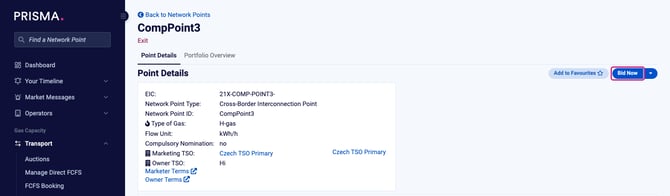
The network point page, with Bid Now at the top right of Point Details.
PRISMA shows Bid Now whenever an auction is running at the network point, even if you can't bid in it yet. To place a bid, both your company and you as a user need an approved assignment to the operator of the network point.
For further information, please consult: How to Request Assignments to Operators?
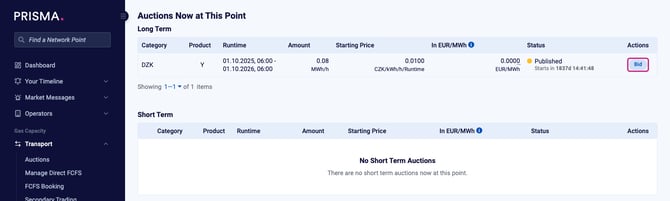
The Auctions Now at This Point section, with Bid in the auction's row.
If an auction doesn't accept bids at the moment, for example because it is suspended, its row shows Details instead of Bid.
For further information on placing the bid itself, please consult: How to Participate in Short-Term Auctions?, How to Place a Bid in a Pay-As-Bid Auction? or How to Place a Bid in a Ascending-Clock Auction?
Other Actions at a Network Point
The button at the top right of Point Details always shows the first available action. To see the other actions, click the arrow next to it. Which actions appear depends on the network point and on the services its operator offers:
| Action | What it does |
|---|---|
| Bid Now | Scrolls down to the auctions running at this point. Only shown while an auction is running. |
| Book Regular FCFS | Opens a regular First-Come-First-Served (FCFS) booking for this point. |
| Book Direct FCFS | Opens a direct FCFS booking for this point. |
| Create Trade Proposal | Starts a secondary market trade proposal for this point. |
| Place Comfort Bid | Creates a day-ahead comfort bid for this point. |
| Create Surrender Request | Starts a surrender request for capacity you hold at this point. |
| Show Proposals to Sell | Lists the proposals to sell at this point. |
| Show Proposals to Buy | Lists the proposals to buy at this point. |
These actions are only available to shippers who are logged in, and only for active network points.