
Overview
You can mark any number of network points as favourites, so they are quicker to find. PRISMA marks your favourite network points with a star, for example in the Network Points list, and you can filter that list to show only your favourites.
You add or remove a favourite on the page of the network point itself.
Adding a Favourite Network Point
To add a network point to your favourites, do as follows:
- Log into PRISMA.
- In the left sidebar, click Transport, then Network Points.
- Click the name of the network point, or click Details in its row.
- Click Add to Favourites at the top right of the Point Details section.

The network point page, with Add to Favourites at the top right of Point Details.
PRISMA confirms that it has added the network point to your favourites. The button changes to Remove from Favourites and the star next to it is filled in.
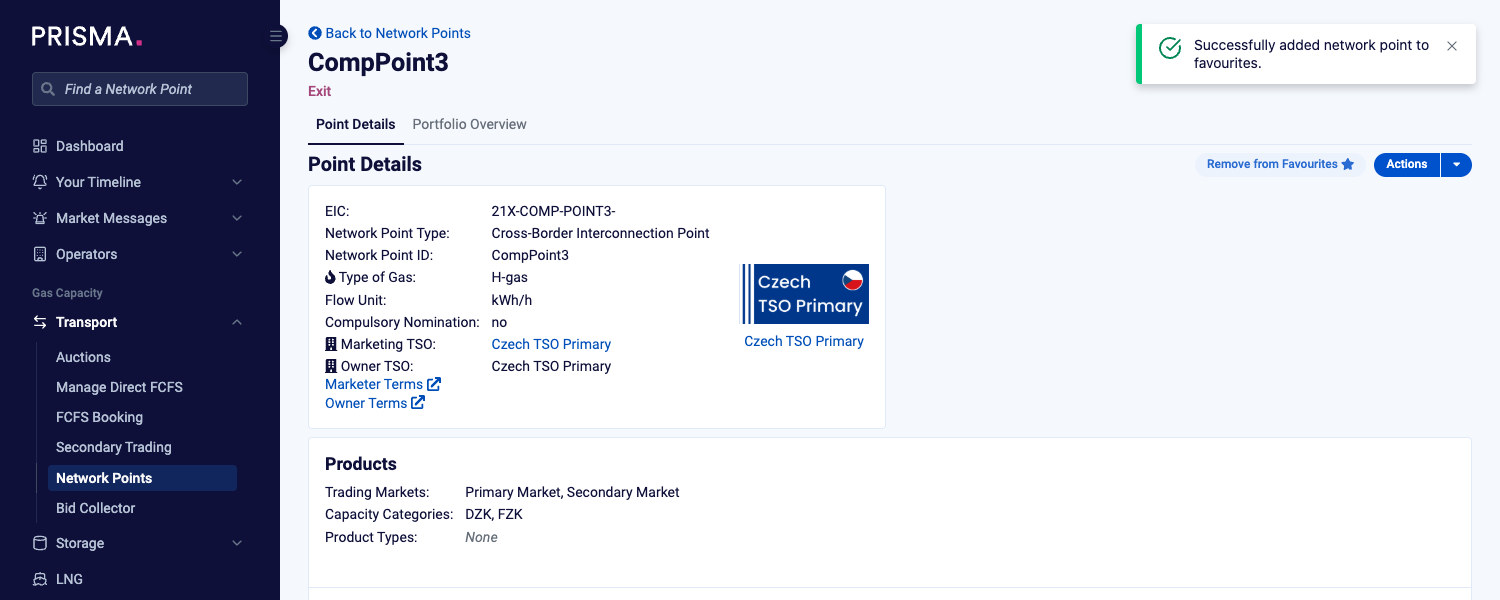
The confirmation message, and the button now showing Remove from Favourites.
You can also open a network point page directly by typing its name in Find a Network Point at the top of the left sidebar.
Removing a Favourite Network Point
To remove a network point from your favourites, open its page and click Remove from Favourites.
Showing Only Your Favourites
To see only your favourite network points, click Favourites Only above the table on the Network Points page. Each favourite has a star in front of its name.
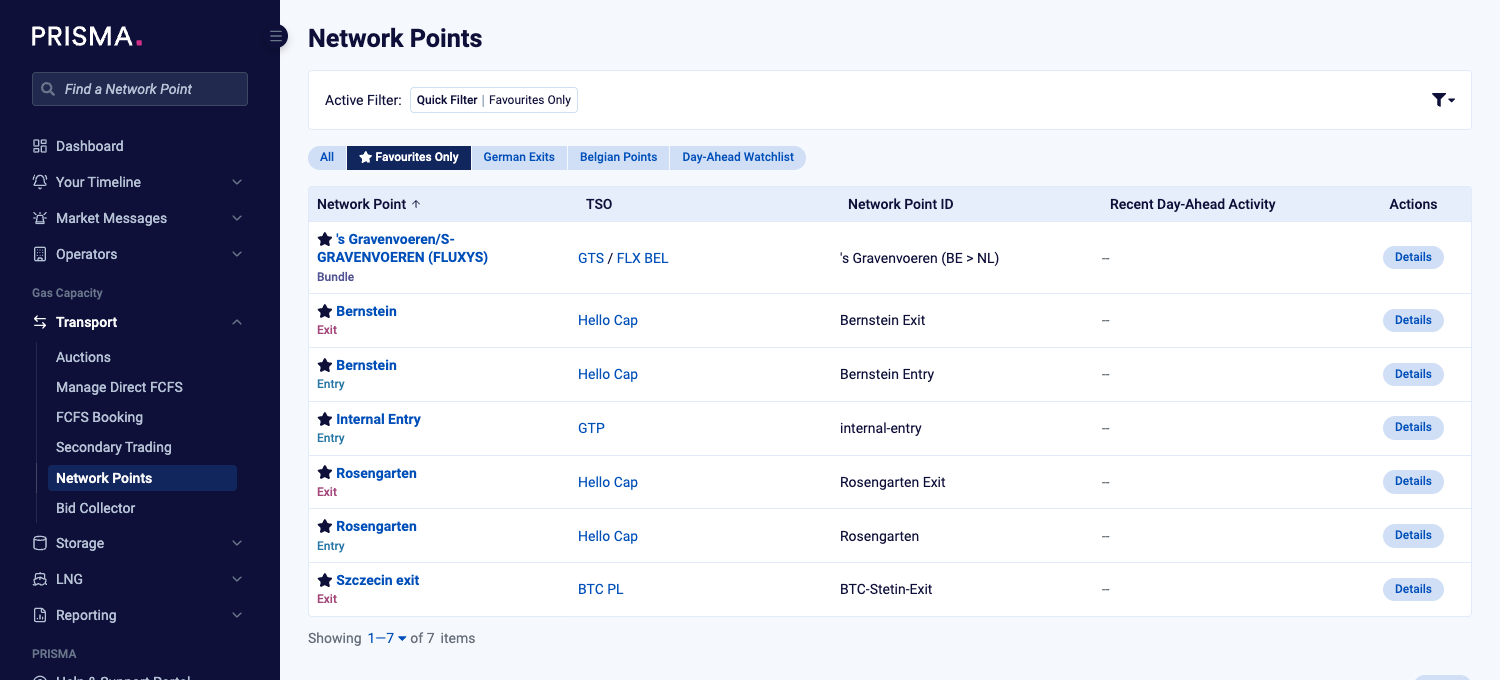
The Network Points page, filtered to Favourites Only.
For further information on quick filters, please consult: How to Use Quick Filters?
You can choose to receive notifications about new trade proposals at your favourite network points. To set this up, go to your notification settings and select New Trade Proposals at Favourite Network Points.