
Overview
PRISMA creates standard reports of trading activity, which you can download from the Standard Reports page. There are two kinds:
| Report | When PRISMA creates it | What it contains |
|---|---|---|
| Monthly report | At the end of every month | For secondary trading, auctions and reverse auctions: one report of all transactions on the platform and one report of your company's transactions. For First-Come-First-Served (FCFS) bookings and surrenders: your company's transactions only. |
| Daily report | Every day, starting at 05:55 CE(S)T, if your company has activated daily reports | Your company's transactions from the last 24 hours. |
You can tell your company's monthly report apart from the market-wide one because its name contains your company's Energy Identification Code (EIC).
Downloading a Secondary Trading Report
To download a report of secondary trading transactions, do as follows:
- Log into PRISMA.
- In the left sidebar, click Reporting, then Standard Reports.
- Click Monthly Reports or Daily Reports.
- Click the filter icon at the right of the Active Filter bar.
- Under Transaction Type, select Secondary Trading.
- Optional: To narrow down the results further, enter dates under Report Period or Included Runtimes.
- Click Filter.
- In the row of the report you want, click CSV, the Excel button or ZIP to download it in that format.
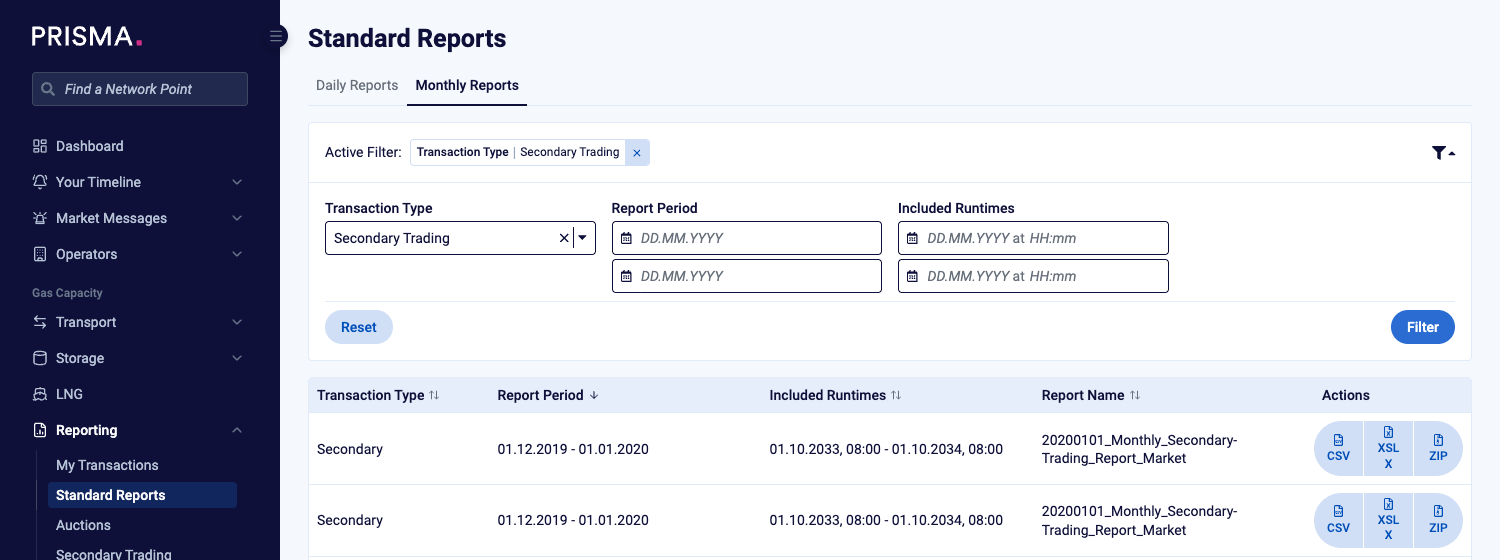
The Monthly Reports tab, filtered to Secondary Trading, with the download buttons in the Actions column.
To remove the filter, click Reset, or click the x next to the filter in the Active Filter bar.
Daily Reports
The Daily Reports tab works in the same way. Daily reports only contain your company's transactions, and an admin of your company has to activate them first.
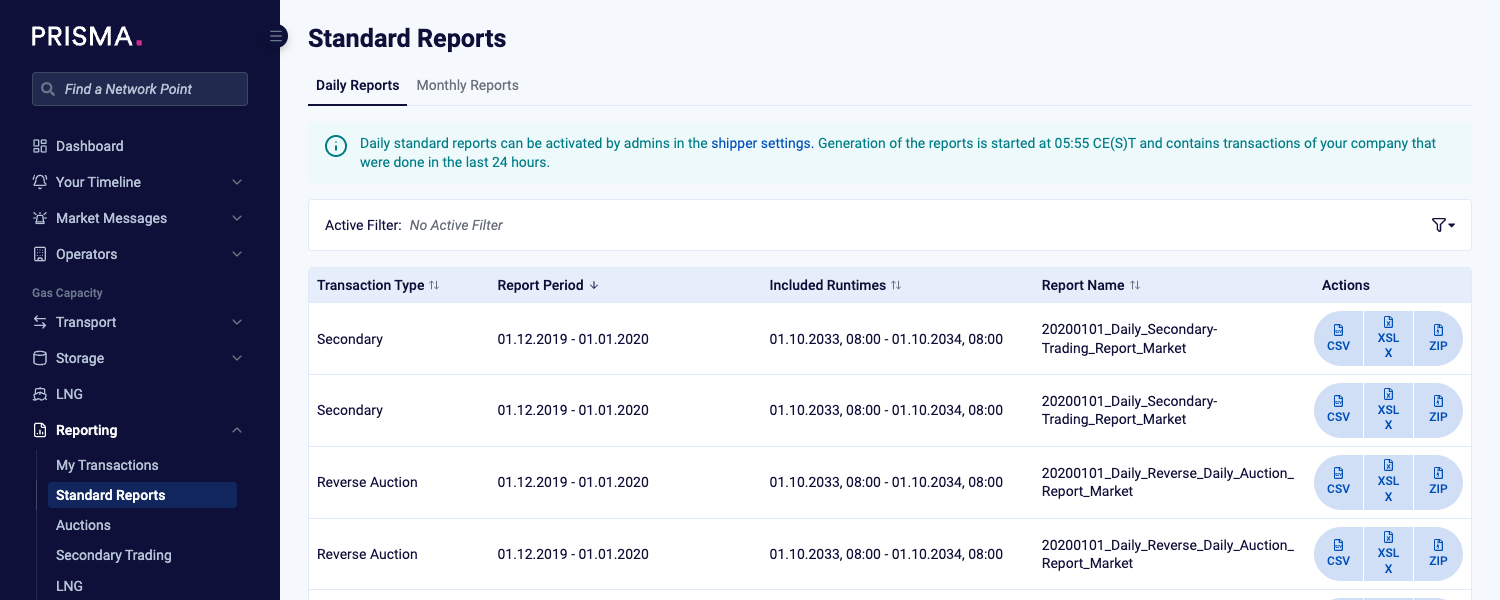
The Daily Reports tab, with the notice on how daily reports are created.
For further information, please consult: How to Activate Standard Reports for Your Company? and Reporting - Where to Find and Download Your Company's Reports?