
Overview
You can book First-Come-First-Served (FCFS) capacity from Trans Tunisian Pipeline Company S.p.A. (TTPC) on PRISMA. TTPC offers its capacity through Direct FCFS: PRISMA checks the available capacity directly and shows you an offer before you confirm the booking. You book TTPC capacity on the same FCFS Booking page as capacity from other Transmission System Operators (TSOs).
TTPC capacity at Oued Safsaf - Mazara del Vallo is offered together with Transmed S.p.A. as the peer TSO. For that reason, you accept the General Terms and Conditions (GTCs) of both operators when you book.
For further information on Direct FCFS in general, please consult: How to Book Direct FCFS Capacity?
Before You Start
You need an active assignment to both TTPC and Transmed S.p.A., and your user needs permission to make booking requests. If either is missing, PRISMA shows a message on the booking form and you can't continue.
For further information, please consult: How to View Your Assignments to Operators?
Booking Capacity with TTPC
Step 1: Select the Network Point
- Log into PRISMA.
- In the left sidebar, click Transport, then FCFS Booking.
- In the Network Point field, type the name of the network point, for example "Oued Safsaf", and select it from the list.
- Click Next.
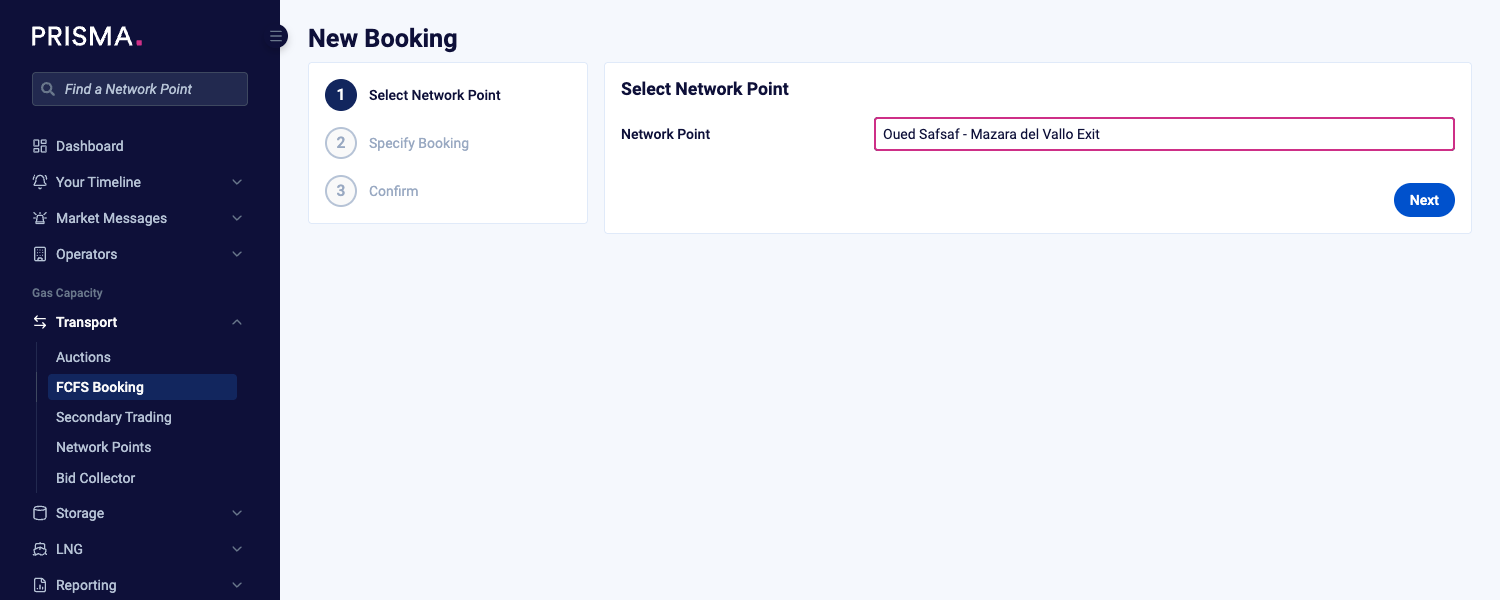
The first step of the New Booking page, with the TTPC network point selected.
Step 2: Specify Your Booking
The Network Point Information box shows the network point, TTPC as TSO, Transmed S.p.A. as Peer TSO, the pipes and the capacity category.
- Select a Product Type. Product types that are greyed out have no open booking window.
- Select a Runtime. If only one runtime is available, PRISMA selects it for you. Times are shown in TTPC's time zone (GMT+1).
- Enter the Requested Capacity.
- Check the Minimum Requested Capacity. PRISMA fills in TTPC's minimum. You can raise it up to your requested capacity, but not lower it below TTPC's minimum.
- Click Request Offer.
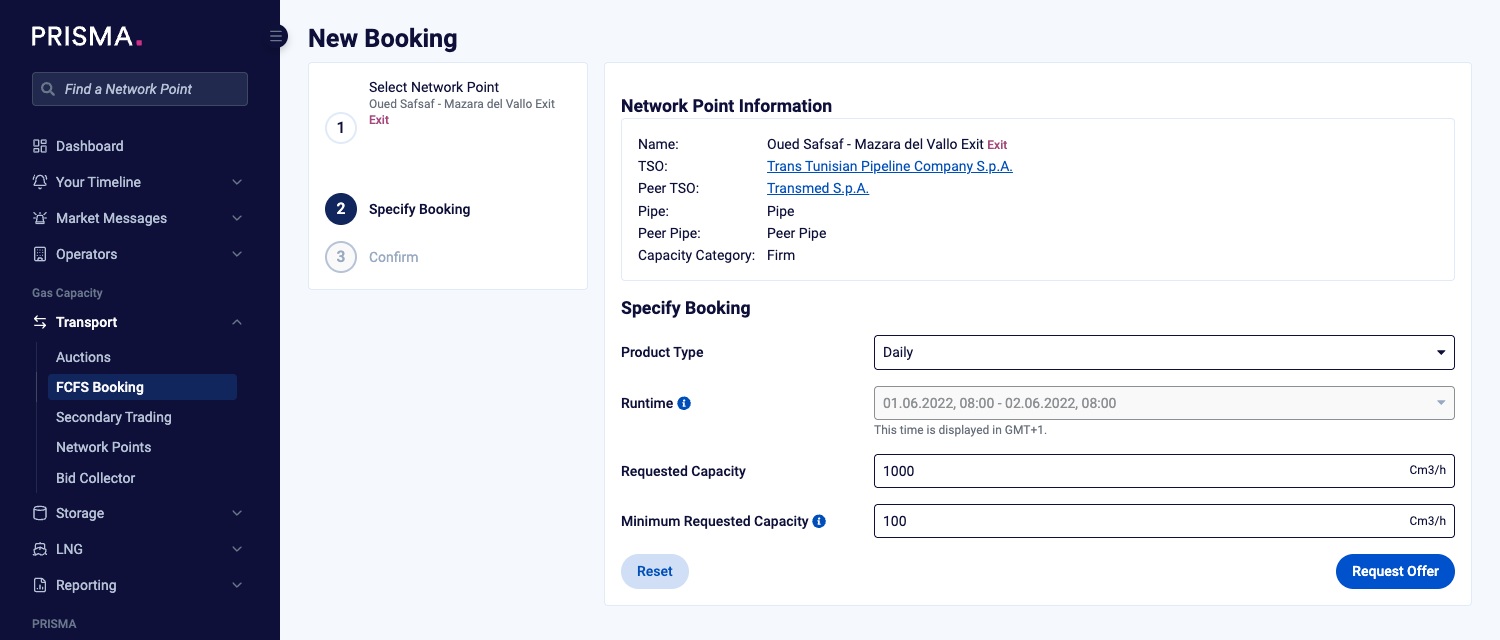
The Specify Booking step, with capacity shown in Cm3/h.
Step 3: Review the Offer and Confirm
The Confirmation step shows Your Request next to the TSO Offer.
- Review the TSO Offer. If less capacity is available than you requested, the offer shows the total available capacity.
- Tick I have read and accept the TTPC General Terms and Conditions.
- Tick I have read and accept the Transmed S.p.A. General Terms and Conditions.
- Click Confirm.
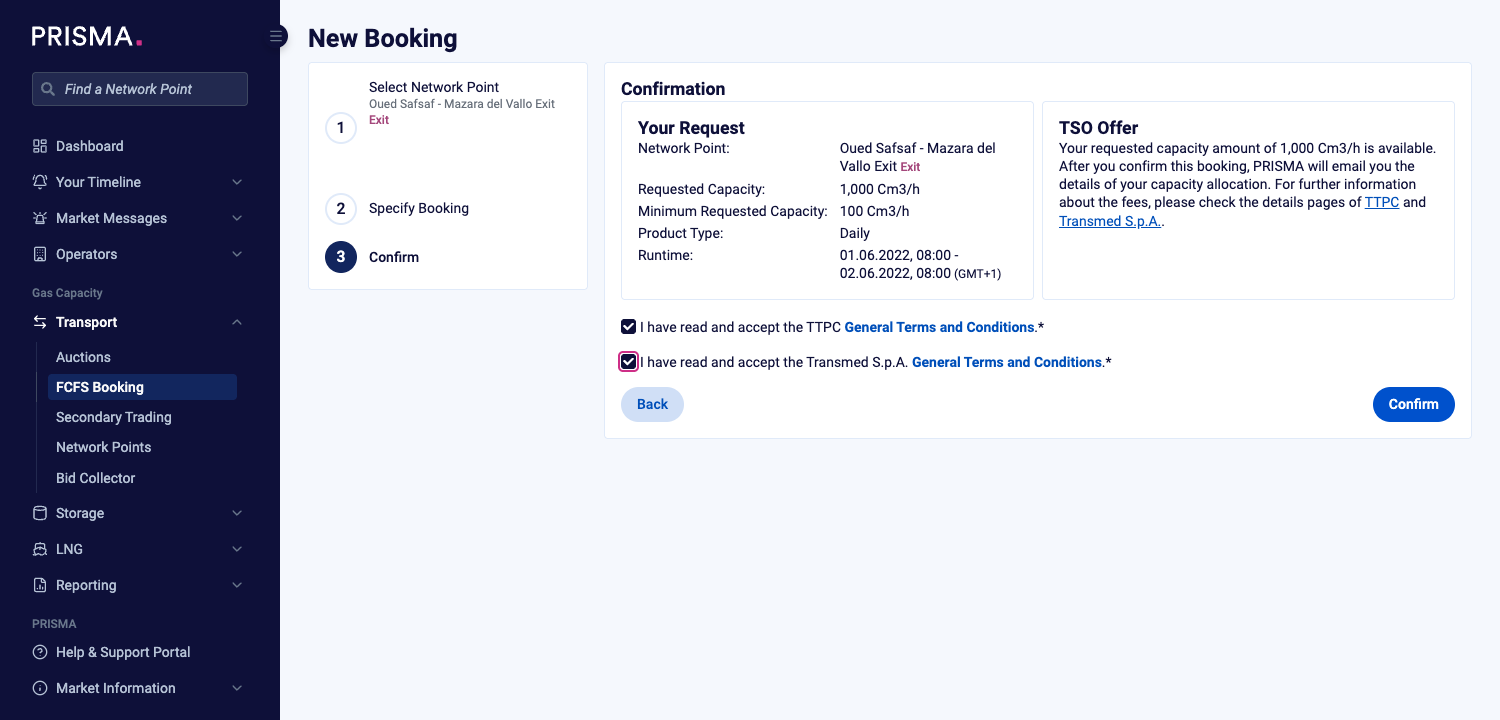
The Confirmation step, with the GTCs of TTPC and Transmed S.p.A. accepted.
All Direct FCFS bookings are binding. Once you click Confirm, you commit to buying the capacity if it is allocated.
If the available capacity is below your minimum, PRISMA tells you that your requested capacity is not available and you can't confirm.
After You Confirm
PRISMA shows the result of your booking and sends you an email with the details. The result is one of the following:
| Result | Meaning |
|---|---|
| Booking Successful | The capacity is allocated to you. |
| Booking Requested (Awaiting Approval) | The TSOs still need to approve the booking. PRISMA emails you once they decide. |
| Booking Declined | The booking was declined, for example because no capacity was left. The message gives the reason. |
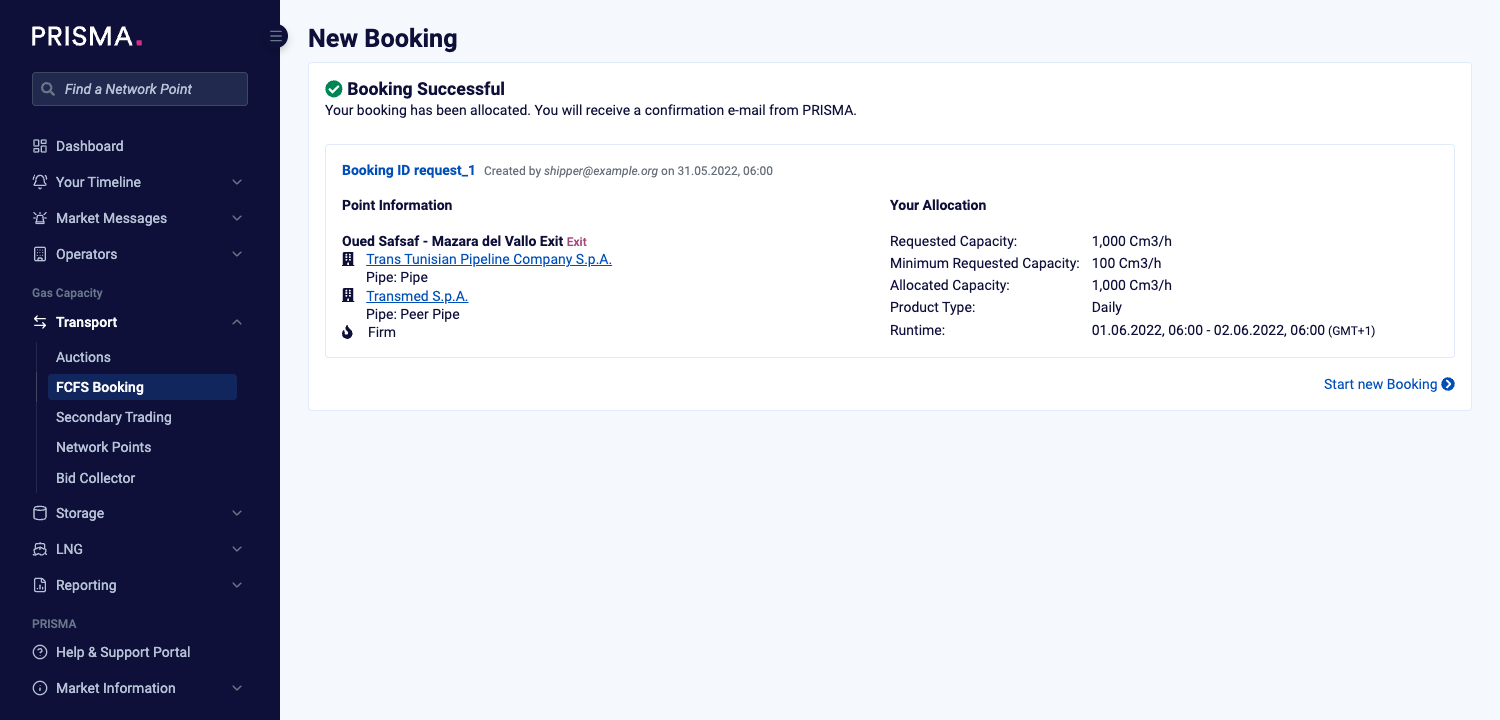
A successful booking, with the allocated capacity under Your Allocation.
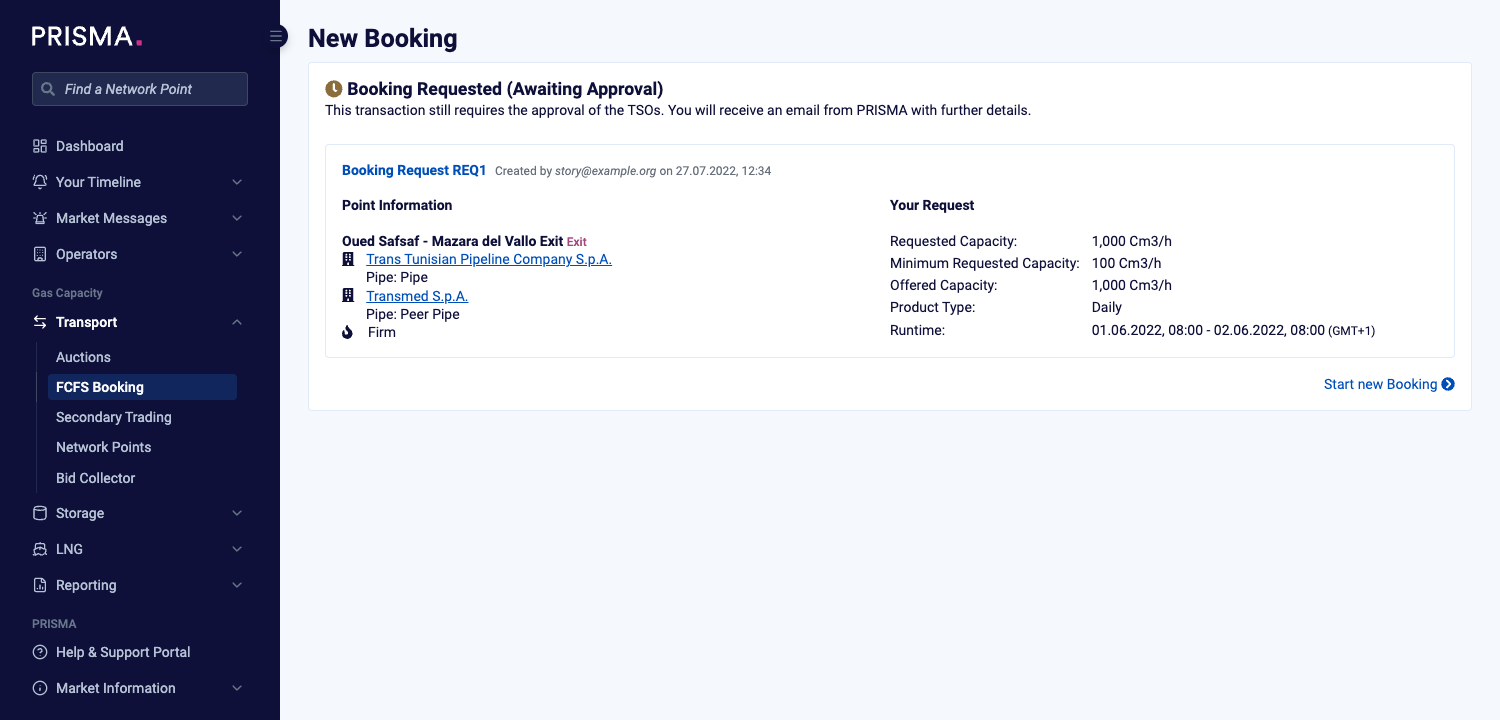
A booking that still needs the approval of the TSOs.
To view the booking later, click the Booking ID or Booking Request link on the result screen. To book again, click Start new Booking.