
Support Portal - How to Use the 'Forgot your password?' Functionality?
PrintOverview
In this article, you can find out how to retrieve your password, so that you can log into the PRISMA Support Portal.
Here you will find our knowledge base and will also be able to manage your tickets with the Customer Success Team.
Instructions
If you want to log in, but have forgotten your password, do as follows:
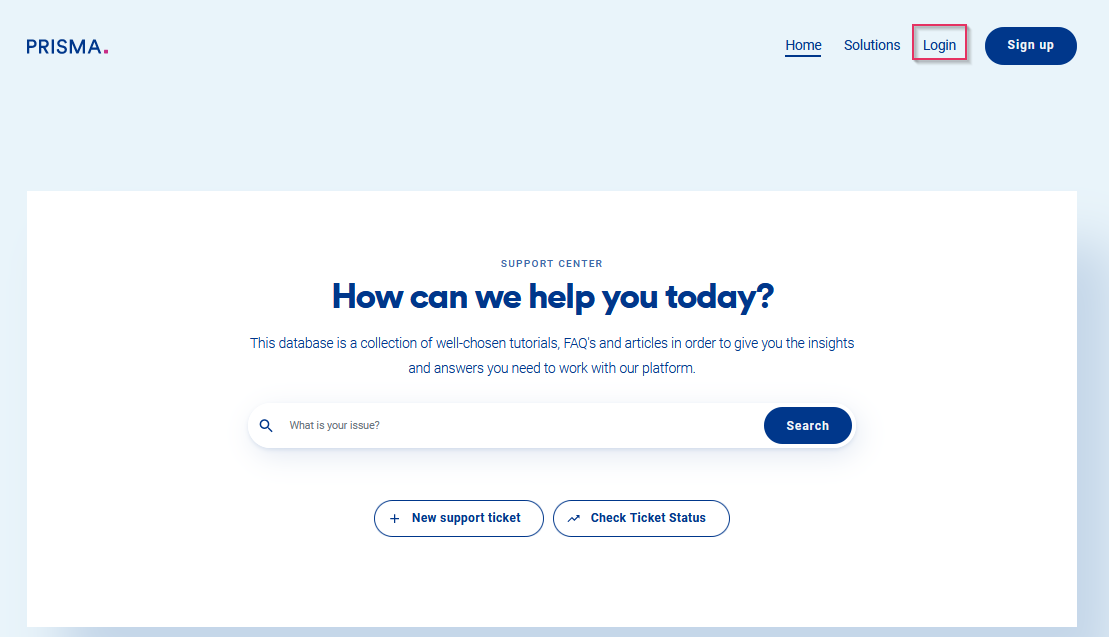
1. Go to the PRISMA Support Portal
2. Click on "Login" on the top-right side of the page
3. When the new page opens, click on "Forgot your password?"
4. Enter your registered email address
5. Click on "Reset my password"
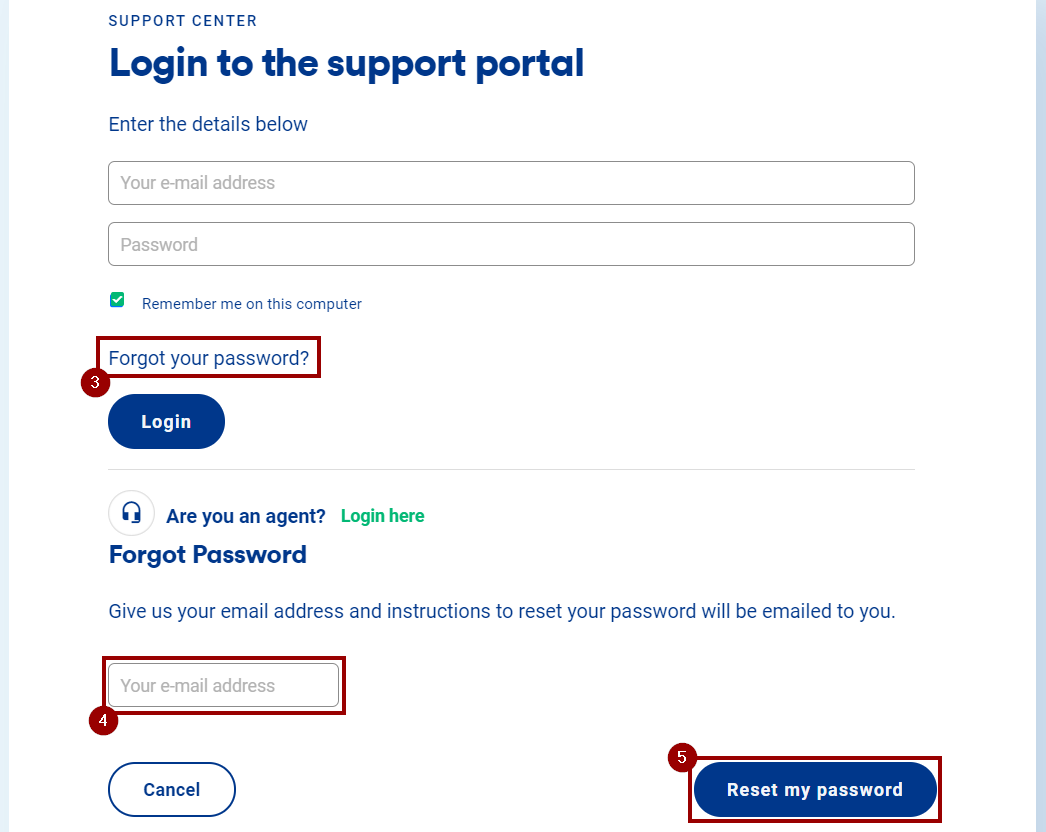
You will then receive an instructions email for resetting your password.
6. Change the password and you will be able to log into the support portal.