
Overview
If an operator to which you're assigned subscribes to our Capacity Management module, you can see, add, change, and delete the capacity allocations for your balancing groups directly on PRISMA. You can complete these tasks in the Reporting section of the platform.
Instructions
To remove an allocation to a balancing group, do as follows:
- Log into your account.
- Click Reporting on the top blue menu.
- Click My Transactions on the white menu.
- In the row of the relevant transaction, click the three dots (...) and select Allocation to Balancing Groups.
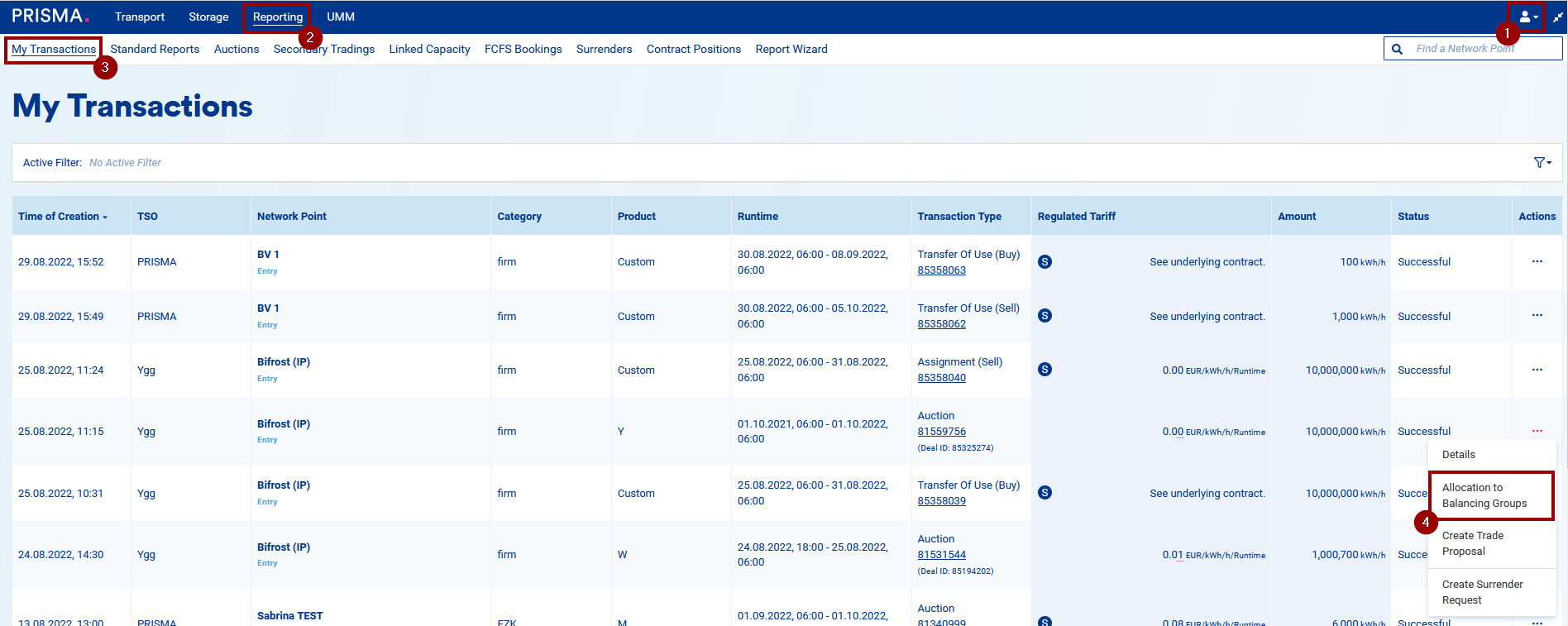 The transaction row menu with the Allocation to Balancing Groups option selected.
On the next page, you'll find:
- A graph showing how much capacity has been allocated to balancing groups and how much is still unassigned.
- The details of the specific transaction you selected.
- A summary of your allocations.
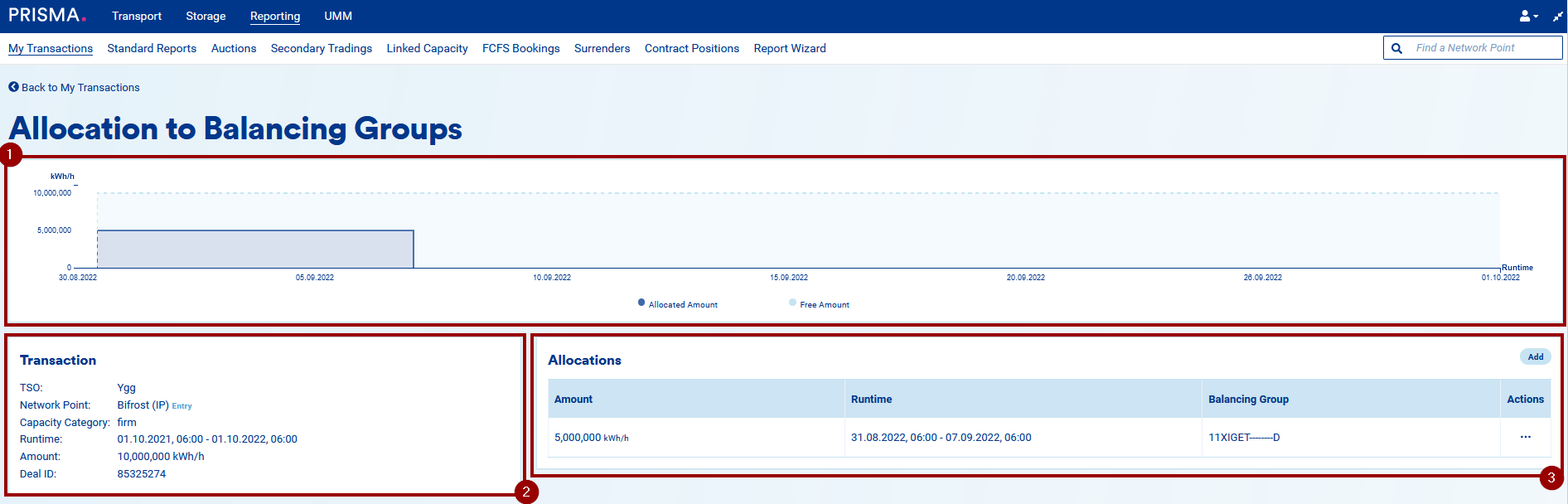 The balancing group allocation page, showing the capacity graph, transaction details, and allocation summary.
- If you want to remove one or more allocations, click the three dots in the Actions column.
- Select Delete.

The Actions column with the Delete option selected for an allocation.
- A pop-up will ask you to confirm the cancellation of the allocation.
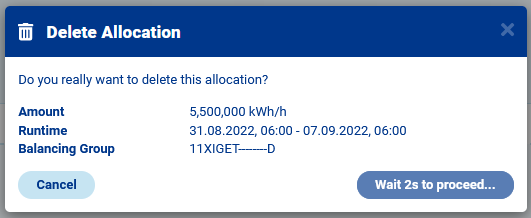
The confirmation pop-up for canceling the allocation.
- Once you confirm the action, the allocation disappears from the table and the capacity becomes free again.
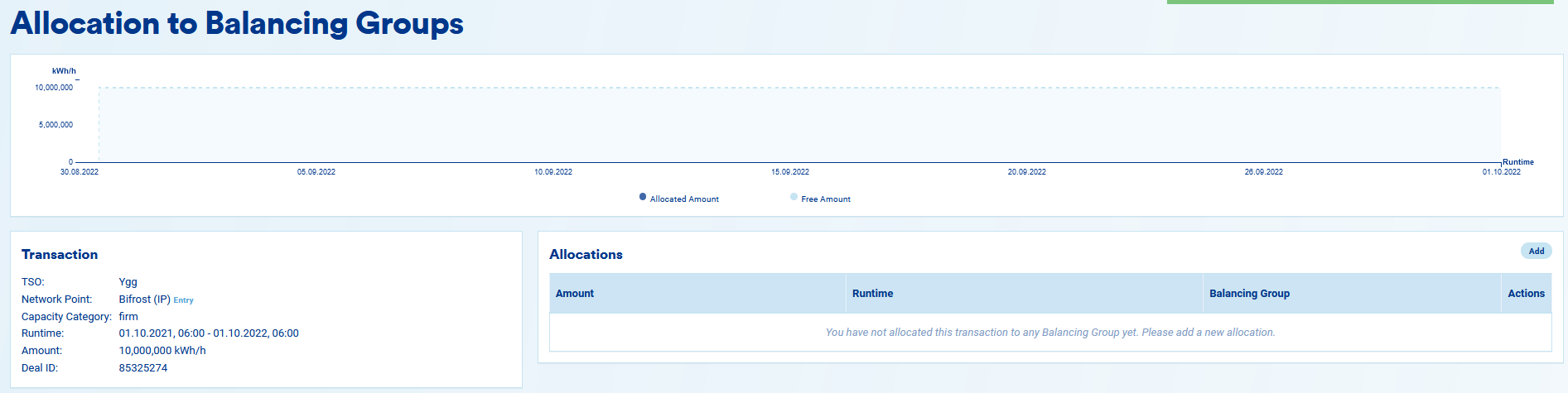 The transaction table after the allocation is removed, with the capacity shown as free again.
You can delete an allocation to balancing groups up to 3 hours before the runtime start of the allocated capacity.