Table of Contents
How to Place a Bid on a Super Bundle Offer
Overview
The Super Bundle service is used in scenarios where network traffic must flow from one point, across several interconnected operators, to another point.
In this setup, two operators represent all involved operators by uploading their total aggregated capacity. This bundled approach simplifies coordination across the network and ensures consistent capacity management across multiple operator domains.
Requirements
Mandatory for all involved TSOs
Active user assignment
Sufficient credit limit
If a German TSO is involved, your organization must count with a Supplier DVGW code
How to Place a Bid on a Super Bundle Offer
1. Log into your PRISMA account
2. Go to Transport
3. Go to Super Bundle

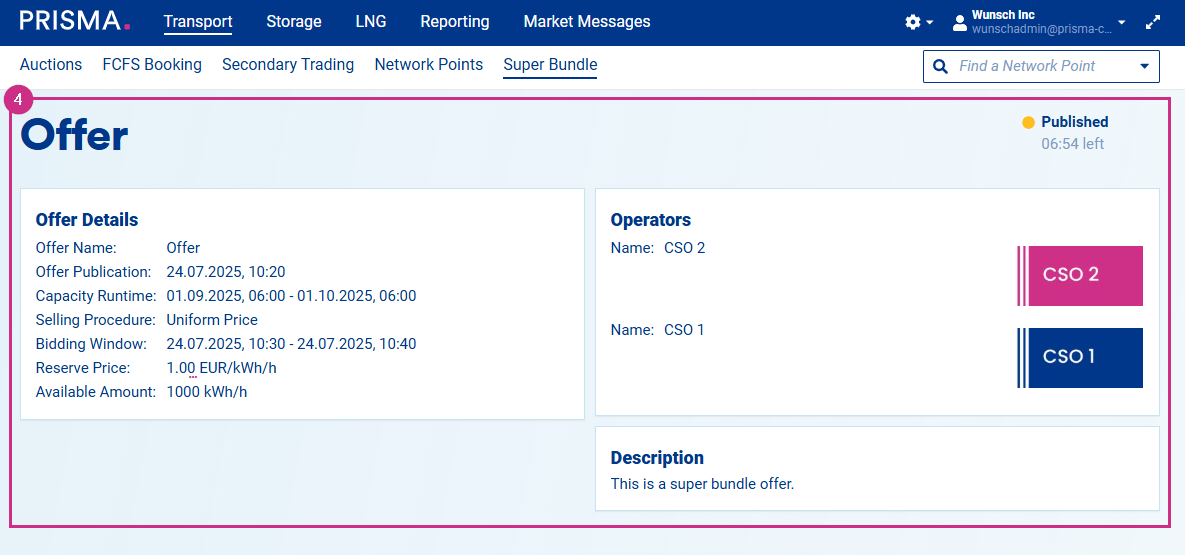
4. If there is a Published offer, you will see its Details, Operators involved and Description.
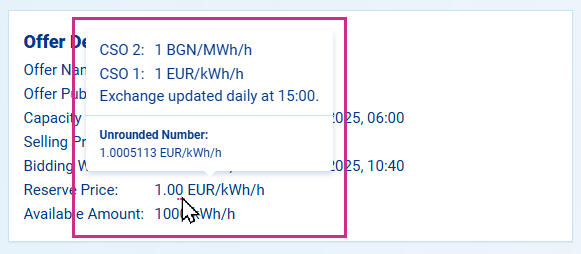
Hovering over the Reserve Price with your cursor will display each TSO's price and the Unrounded Number detail.
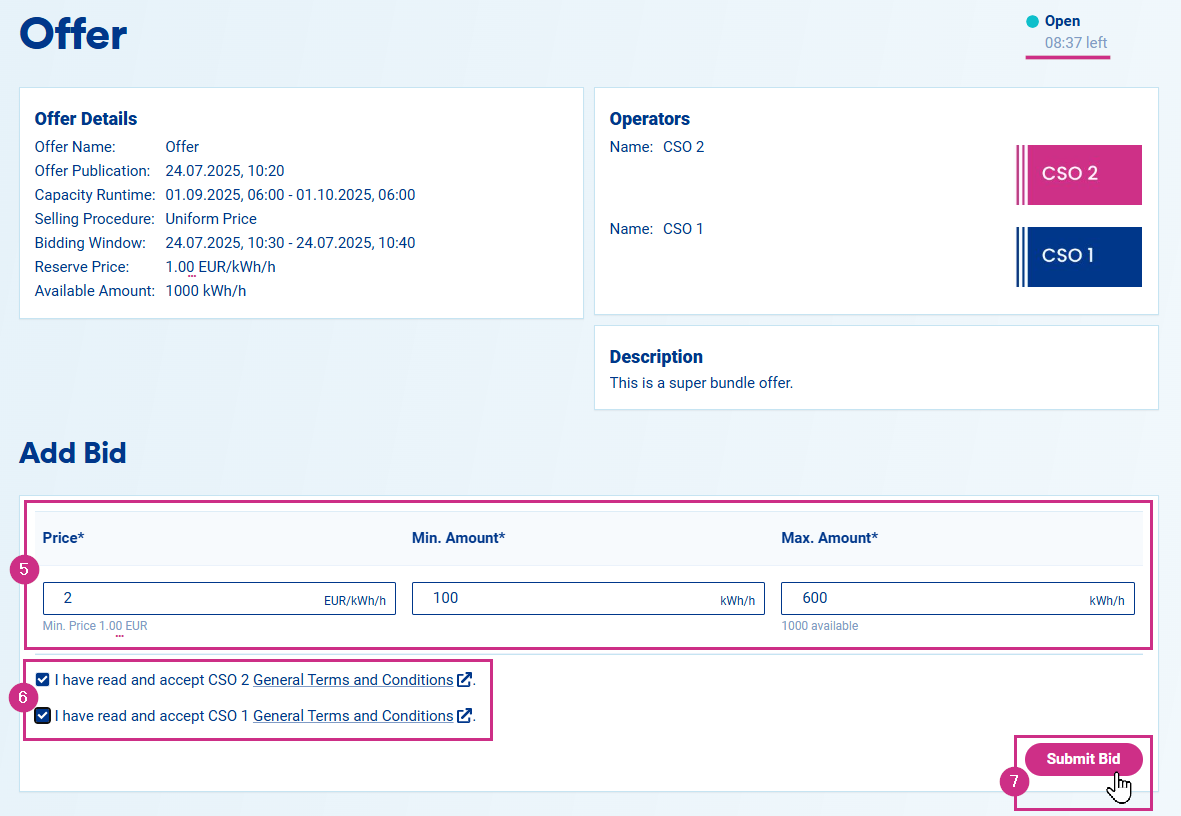
5. If the offer is Open, you will be able to enter your bid's details: Price, Min. Amount and Max. Amount
6. Check the corresponding boxes to accept the operators' General Terms and Conditions
7. Click on Submit Bid
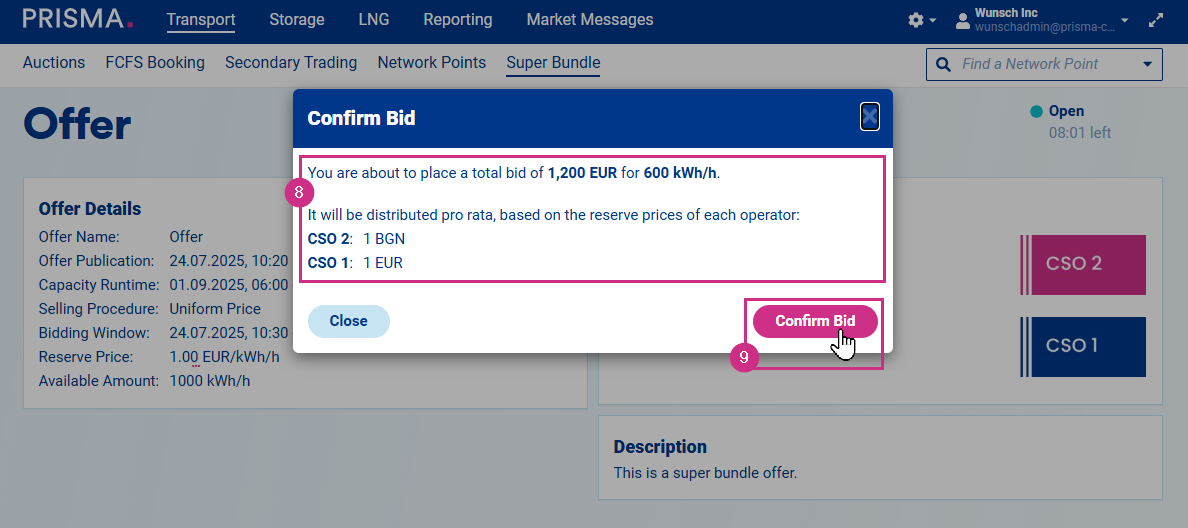
8. A pop-up window will show the bid's details, such as total bid and each operator's reserve price
9.Click on Confirm Bid to complete the process
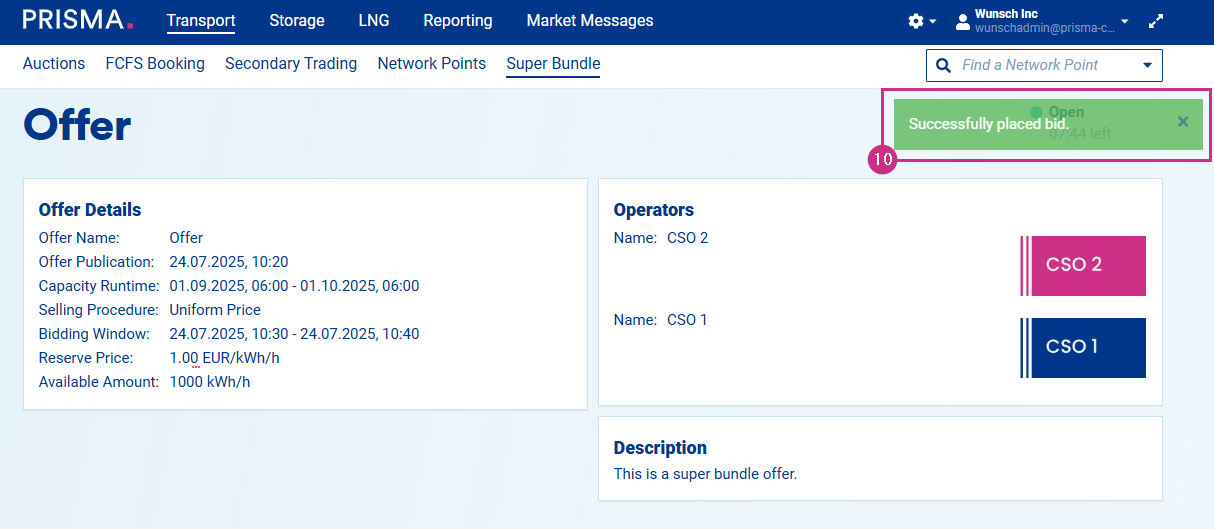
10. A green box will notify you that your bid has been successfully placed
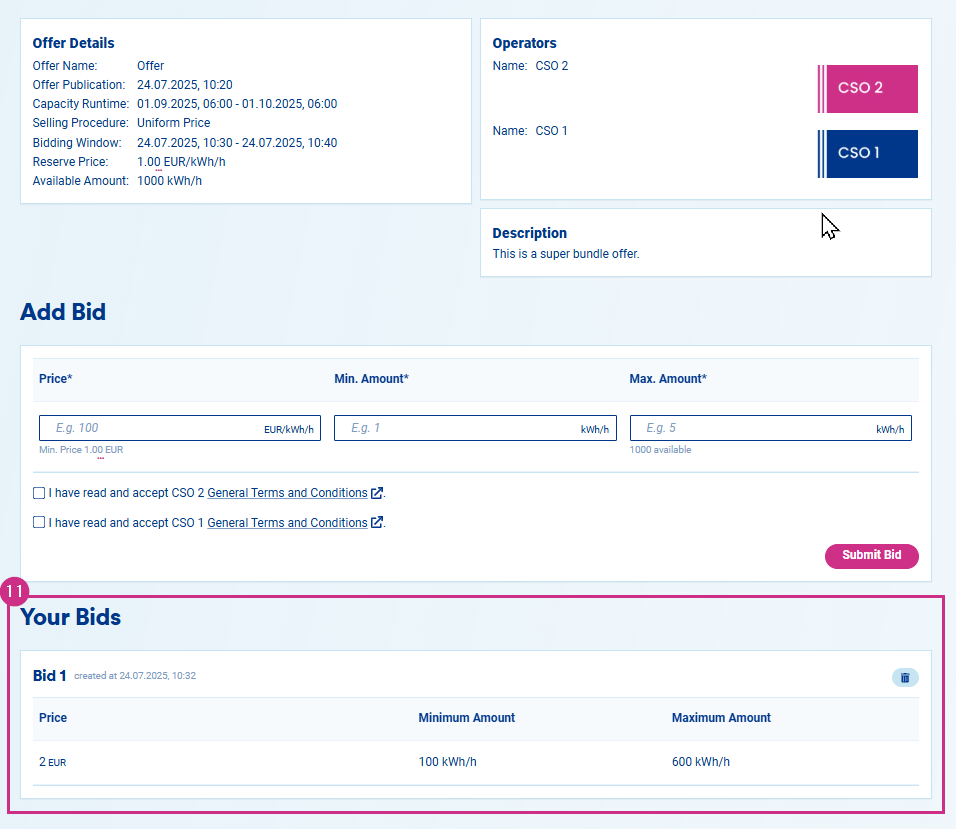
11. Scroll down to find your existing bids
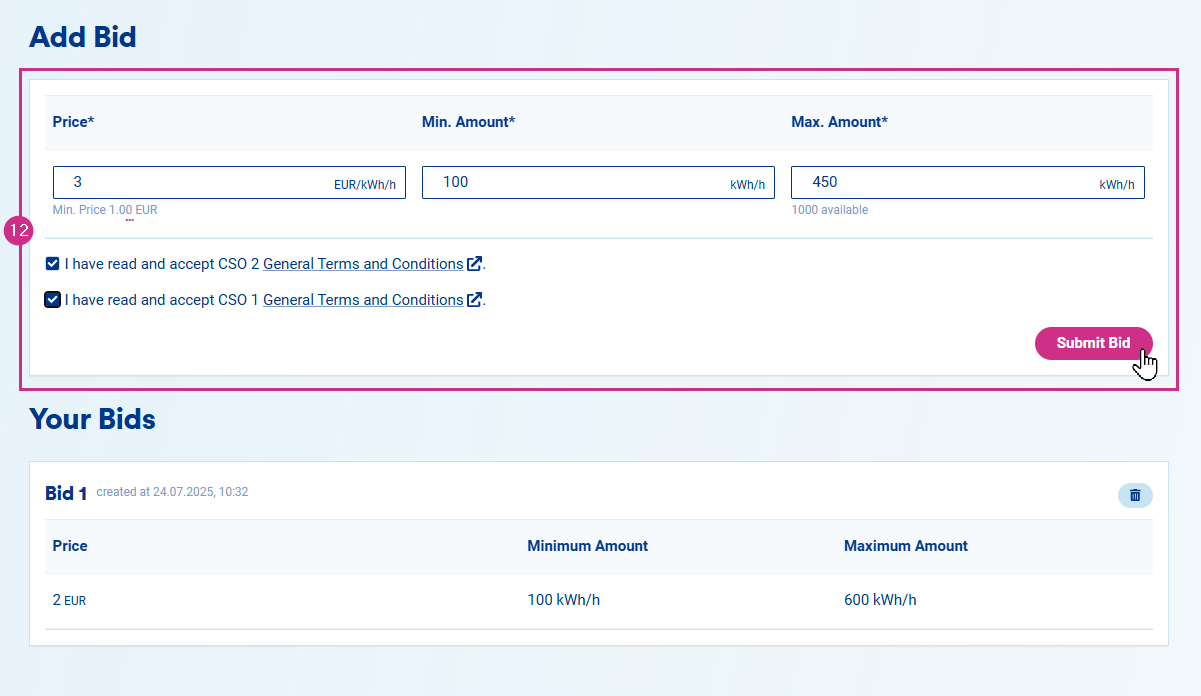
12. You can also submit more bids
How to Delete a Bid
Bids can only be deleted while the offer is Open.
1. Log into your PRISMA account
2. Go to Transport
3. Go to Super Bundle

4. Scroll down to find your existing bids
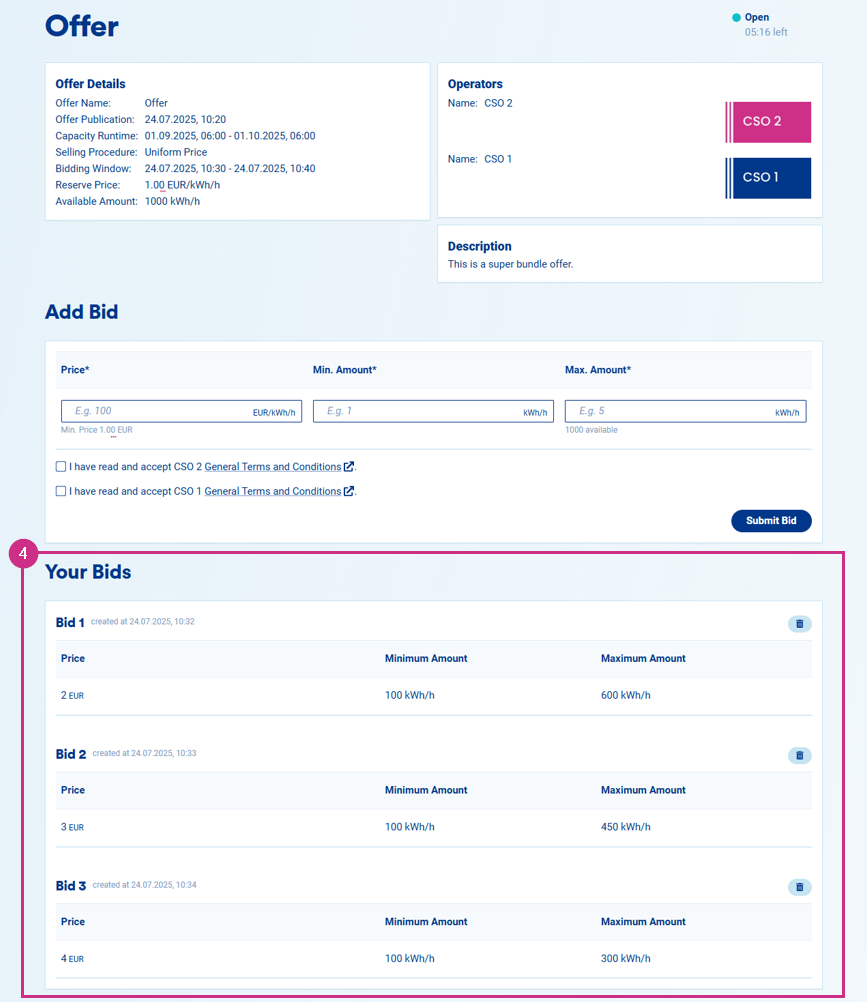
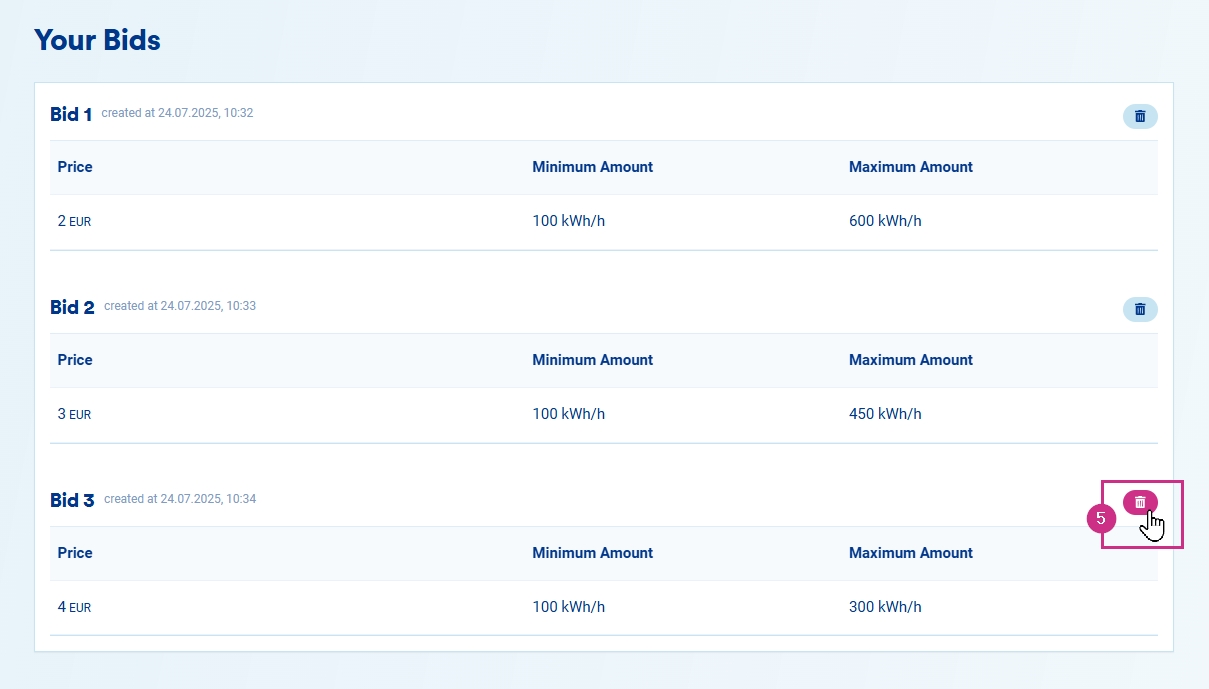
5. Click on the trash bin icon to delete a bid
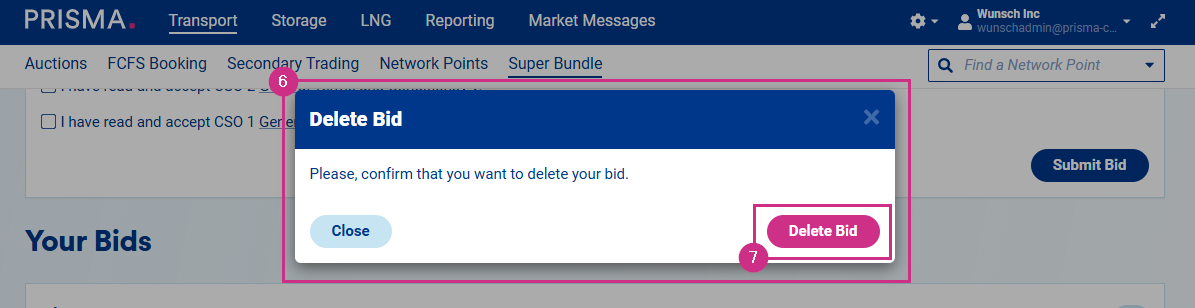
6. A pop-up window will prompt you to confirm your decision
7. Click on Delete Bid
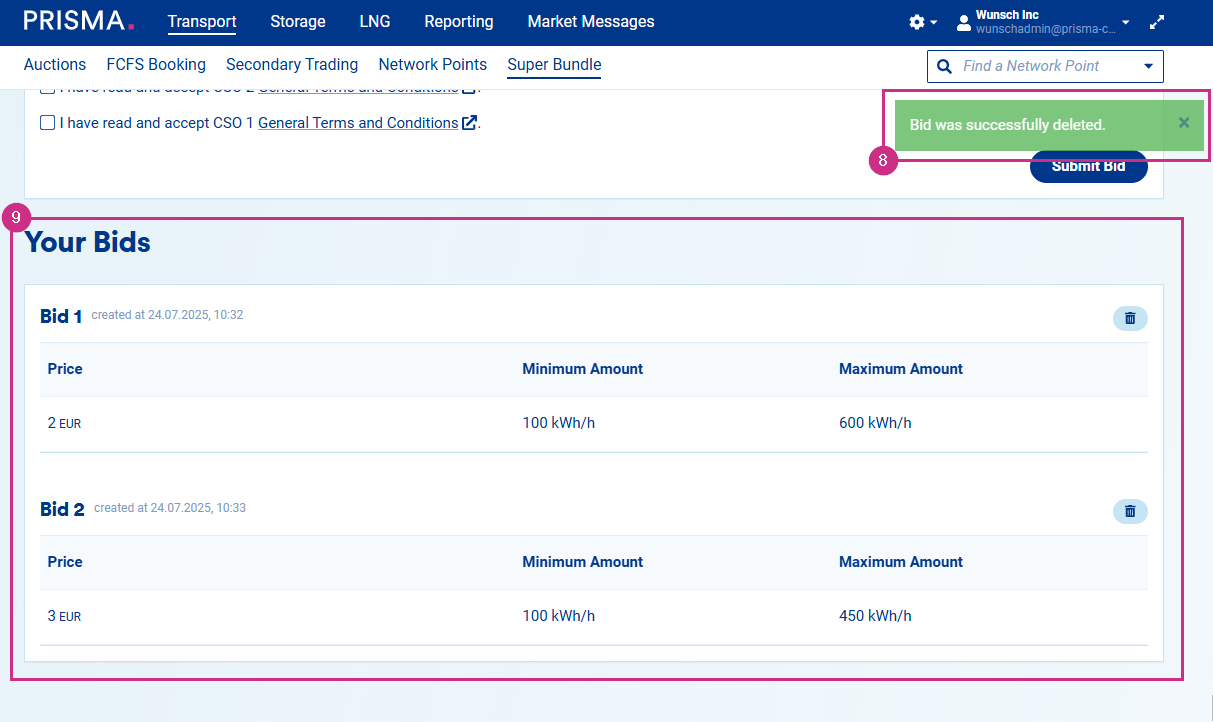
8. A green box will notify you that your bid was successfully deleted
9. Your Bids section is updated to display only your active bids and the corresponding credit limit will be released
How to Check your Allocations
1. Log into your PRISMA account
2. Go to Reporting
3. Click on Super Bundle
4. This overview displays the columns Offer Name, Operator Name, Capacity Runtime, Price/MWh/h, and allocated Capacity
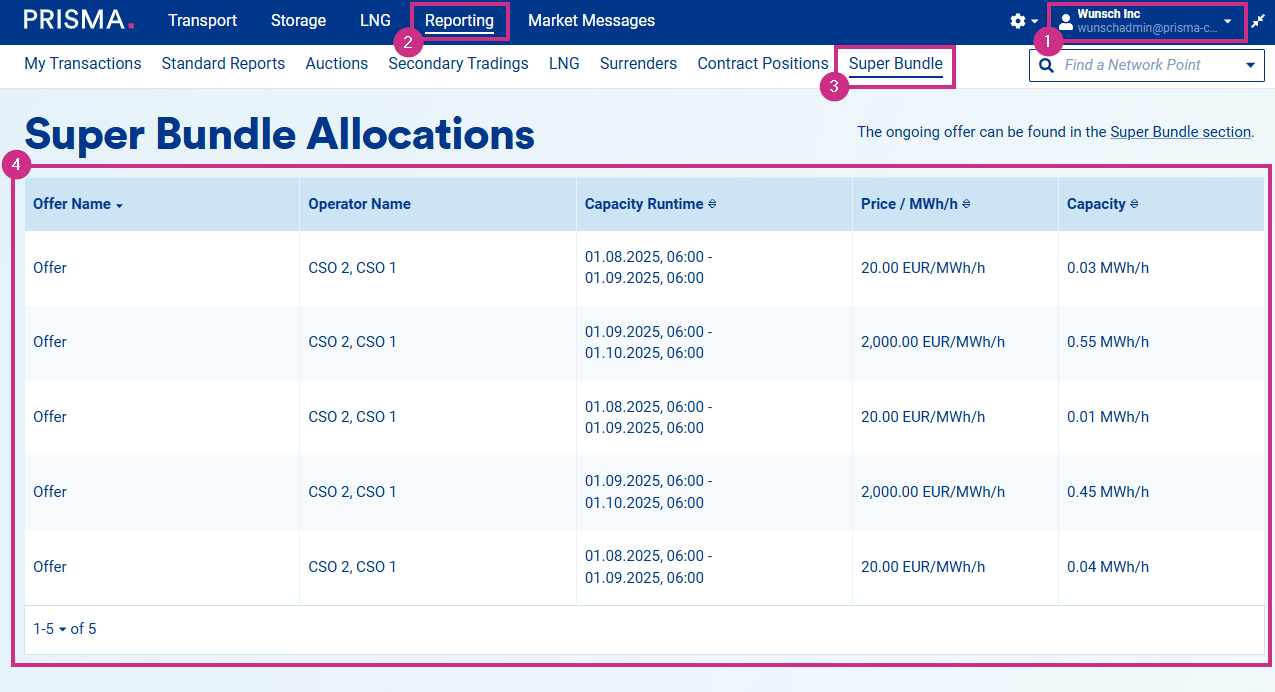
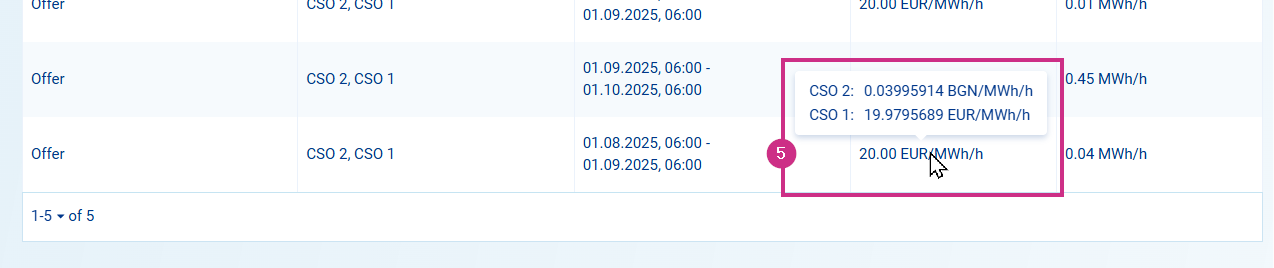
5. Hover over an offer's price to see the unrounded price defined by each TSO