
Overview
As an admin, you can downgrade yourself or another admin to a different Permission Group, such as Standard Shipper User. You do this directly in your PRISMA account; the process doesn't require any form.
How It Works
Downgrading an Admin
- Log into your account.
- Click the gear icon in the corner.
- In the Settings sidebar, under Company Settings, click User Management.
- Click Details in the row of the relevant user.
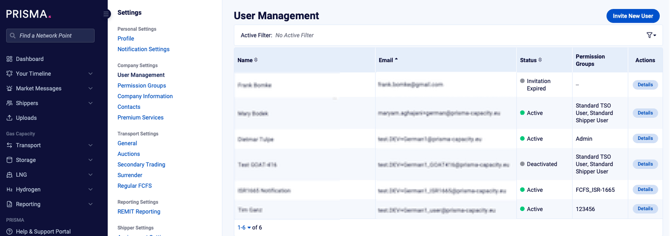
The User Management list, with a Details button in each user's row.
- On the user's details page, under Assigned Permission Groups, click Edit Assignment to Permission Groups.
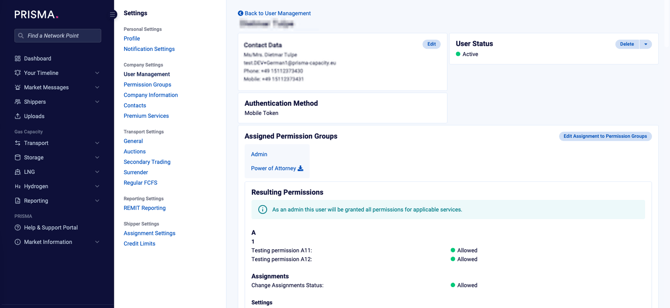
A user's details page, showing their Assigned Permission Groups and the Resulting Permissions this grants them.
- On the Edit Permission Groups page, uncheck Admin under Standard Groups.
- Select a replacement group instead, for example Standard Shipper User.
The Preview of Permissions on the right updates live as you change your selection.
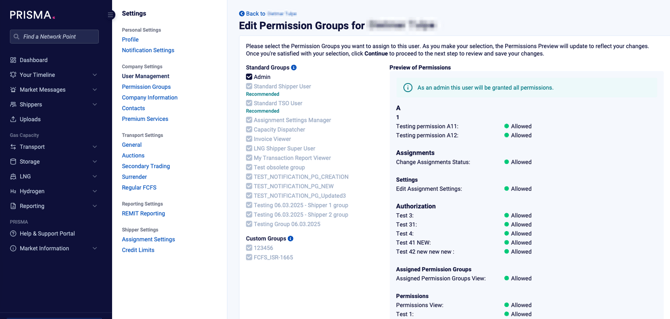
The Edit Permission Groups page, with the Preview of Permissions updating live as you change the selection.
- Click Continue to proceed to review and save your changes.
If you are the last user or only assigned the Admin permission group at your company, you likely need to assign Adminto a replacement user before you can remove it from yourself.