
Overview
A conversion lets you use unbundled capacity you bought earlier as new bundled capacity. It saves you paying twice for the same capacity: where you only need the other unbundled side, but the TSO offers that capacity as a bundle only, you buy the bundle and convert the side you already hold. An ex-post conversion is one you request after the auction has closed and the capacity has been allocated, which is what makes it "ex-post".
You raise the request from My Transactions, against the bundled deal. PRISMA gives it an identifier and sends it to the Transmission System Operator (TSO), which approves or rejects it. Nothing changes on your contracts until the TSO approves.
A conversion request is binding. You cannot withdraw it once submitted, so check the amount and runtime before you submit. If you spot a mistake afterwards, contact the TSO directly: it can reject the request for you.
What You Can Convert
Both sides of the conversion have to qualify: the bundled booking that triggers the request, and the unbundled booking you want to convert.
| Requirement | What it means |
|---|---|
| Bundled booking | A long-term bundled capacity booking with a firm capacity category, meaning Fixed Freely Allocable Capacity (FZK) or Dynamically Allocable Capacity (DZK). |
| Unbundled booking | You hold an unbundled booking at the same network point, also firm, that the bundled capacity can be set against. |
| Deadline | The conversion window is still open. See the deadline below. |
| Capacity still available | The capacity is not committed elsewhere, for example by a surrender, a secondary trade, a pending conversion, or an allocation to a balancing group. |
Where a deal does not qualify, the Create Conversion Request action is usually not offered on the My Transactions table at all. Where you reach the page but the deal does not qualify at the network point you opened, PRISMA tells you so instead of showing the form.
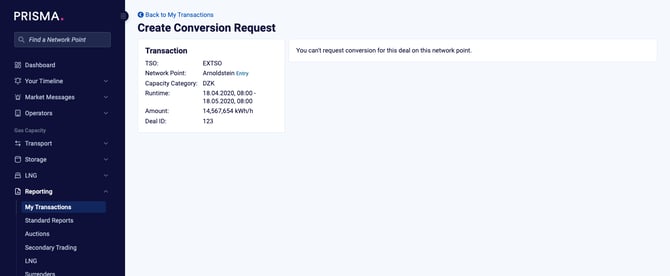
PRISMA states when a deal cannot be converted at that network point.
The deadline
You have 3 business days (Monday to Friday) after the end of the auction in which you bought the bundled product. The clock runs from the auction's close, not from the runtime start.
For example, an auction closing on Thursday at 18:00 leaves you until the following Tuesday at 18:00.
Once you submit, the request itself runs on a second clock: the TSO has 72 working hours to approve or reject it. PRISMA shows that as the request's expiry date. If the TSO has not decided by then, the request is rejected automatically.
Creating the Request
To start a request, click Reporting, then My Transactions, find the bundled transaction, and click Create Conversion Request in its actions. The Create Conversion Request page opens with two cards: Transaction, showing the bundled deal you selected, and Conversion Request, which is the form.
Check the Transaction card first. It confirms the TSO, the network point and direction, the capacity category, the runtime and the amount of the booking you are converting from.
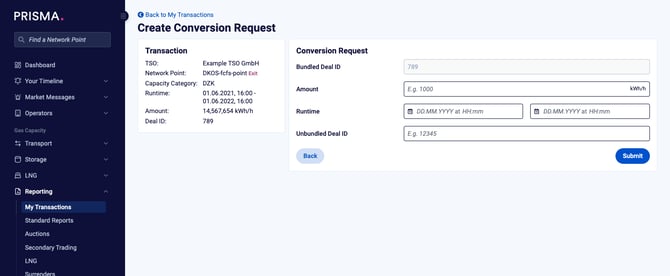
The Transaction card confirms which bundled deal the request is built on.
Where the bundled deal covers both sides of a bundle, the page opens with a tab for each network point, labelled with the point name and its direction. Select the tab for the side you want to convert before you fill in the form, because the request applies to that one side.
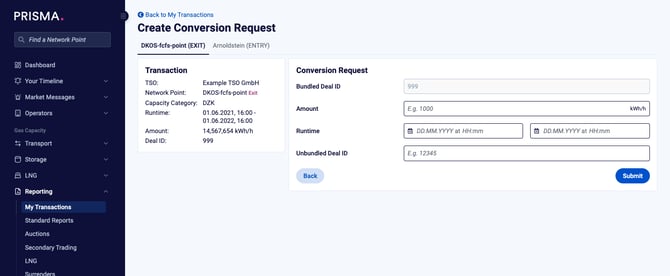
A bundle gives you one tab per network point. The request applies to the selected side only.
Complete the Conversion Request form.
| Field | What to enter |
|---|---|
| Bundled Deal ID | Prefilled from the transaction you selected and not editable. |
| Amount | The capacity to convert, in the network point's flow unit. It cannot exceed the amount of the bundled booking. |
| Runtime | Runtime Start and Runtime End. The period has to sit inside the bundled booking's runtime. |
| Unbundled Deal ID | The Deal ID of the unbundled booking you want to convert. |
PRISMA checks the amount and the runtime against the bundled booking as you submit, and names the limit it applies. Entering too much capacity returns "Please enter an amount equal to or lower than" the booking's amount, and a runtime outside the booking's own runtime is refused the same way.
Click Submit when the form is complete. PRISMA confirms with "Conversion request submitted successfully," gives the request an identifier, and opens the request with the status Pending.
Where a deal does not qualify, the Create Conversion Request action is usually not offered on the My Transactions table at all. Where you reach the page but the deal does not qualify at the network point you opened, PRISMA tells you so instead of showing the form.
Following the Request
Every conversion request has its own page, reached from My Transactions. The page header carries the conversion identifier and the current status, and three cards below it show the detail.
| Card | What it shows |
|---|---|
| Capacity Information | The TSO, the network point and direction, the capacity category, and the runtime and amount you requested. |
| Bundled Deal | The Deal ID of the bundled booking, linked to its auction, and its Contract ID where one exists. |
| Unbundled Deal | The Deal ID and Contract ID of the unbundled booking being converted. |
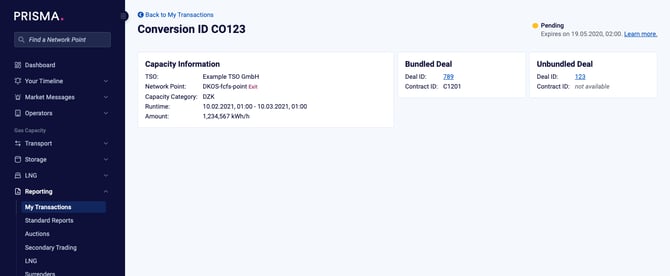
A pending request shows the date it expires if the TSO does not decide.
Where the unbundled booking is a multi-year contract rather than an auction allocation, the Unbundled Deal card shows its Deal ID as plain text instead of a link, since there is no auction to open.
Statuses
| Status | What it means |
|---|---|
| Pending | You have submitted the request and the TSO has not decided yet. The status line gives the date the request expires. |
| Successful | The TSO approved the request. The status line gives the approval date. |
| Unsuccessful | The request did not go through. The status line says whether the TSO rejected it, naming the TSO and the date, or whether it was rejected automatically. |
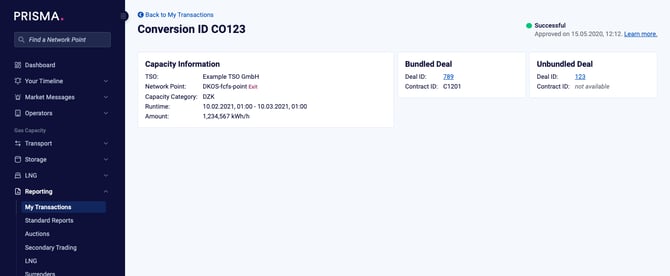
An approved request shows Successful, with the approval date.
Both a rejection by the TSO and an automatic rejection show as Unsuccessful, so read the line under the status to tell them apart.
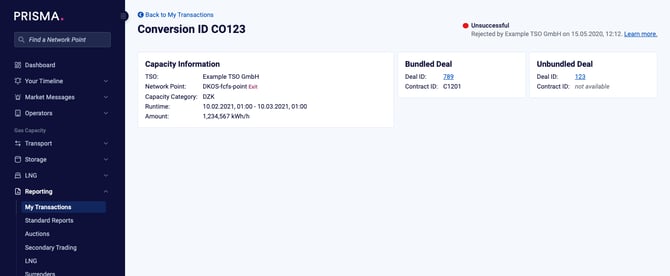
A rejection by the TSO names the TSO and the date.
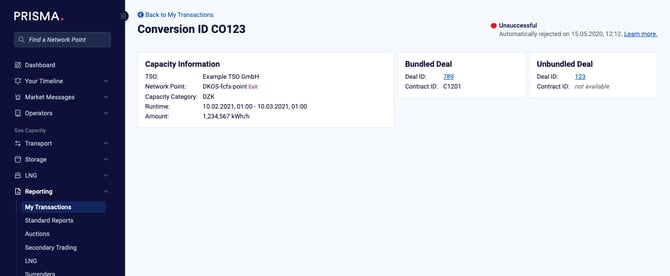
An automatic rejection gives the date but no TSO, since no one decided it.
If your request is unsuccessful
An unsuccessful request changes nothing on the capacity or situation and leaves you with the full unbundled and bundled capacity, but the bundled capacity that was blocked by the system while the request was pending is freed again.
What to do next depends on which of the two rejections you are looking at.
| Status line | What happened | What to do |
|---|---|---|
| Rejected by [TSO] on [date] | The TSO declined the conversion. Approving is the TSO's commercial and contractual decision, so PRISMA does not record a reason. |
Contact the TSO named on the status line, quoting the conversion identifier, if you need to know why. |
| Automatically rejected on [date] | The request expired without a decision. | Contact the TSO if the deadline mattered to you, since the decision was theirs to make. Submit a new request, provided the conversion window on the bundled deal is still open. |
A rejection does not reopen the conversion window. The 3 business day deadline runs from the end of the auction regardless of what happens to a request in the meantime, so a request rejected late in that window may leave no time to submit another one.
To submit again, go back to the bundled transaction in My Transactions and start a new request. The rejected request stays on record and cannot be reopened or edited.
Notifications
Conversion updates arrive in Your Timeline, under Notifications. To change which ones reach you, open your notification settings and adjust the Capacity Management group: Conversion Request Created covers the request being raised, and Conversion Request Processed covers the TSO's decision.