Overview
Surrendering capacity means returning capacity you have booked to the Transmission System Operator (TSO) that sold it, so the TSO can offer it to the market again. You give up the usage right for the period you return, and the TSO decides what happens to the capacity next.
You create a surrender request from the network point where the capacity is booked, or from the allocation in My Transactions. PRISMA sends the request to the TSO while you wait, so you find out within a few minutes whether the TSO acknowledged it. Once acknowledged, the request appears in My Transactions
Each TSO decides whether to offer surrender at all, and under which conditions. That decision covers every network point the TSO operates rather than being set point by point, so surrender is either available across a TSO's network or not at all. The fields you see, the periods you may return, and how far in advance you have to submit all come from the TSO's settings, so the same wizard can look slightly different from one TSO to the next.
Surrender is not offered by every TSO and remains subject to national regulatory requirements.
Before You Start
PRISMA checks the following before it lets you open the wizard. Where any of them is missing, the wizard still opens, but the form stays locked and a message explains the reason.
| Requirement | What it means |
|---|---|
| Assignment | You need an active assignment to the TSO that owns the network point. A pending assignment is only enough if the TSO allows it. |
| Surrender enabled | The TSO has switched surrender on. This covers all of that TSO's network points, so it is not something that varies from one of its points to another. |
| No active maintenance | The TSO has no active maintenance window running. Surrender requests are suspended for the duration. |
| Something to surrender | You hold an eligible booking at that network point. Depending on the TSO, you identify it by its Deal ID, by the contract ID, or by both. |
Opening the Surrender Request Wizard
You can start a surrender request from the network point or from an allocation you already hold. To start from the network point, click Transport, then Network Points, select the network point holding the capacity, and click Create Surrender Request in the Surrendered Capacity at This Point section. To start from an allocation instead, click Reporting, then My Transactions, find the allocation you want to surrender, and click Create Surrender Request in its actions.
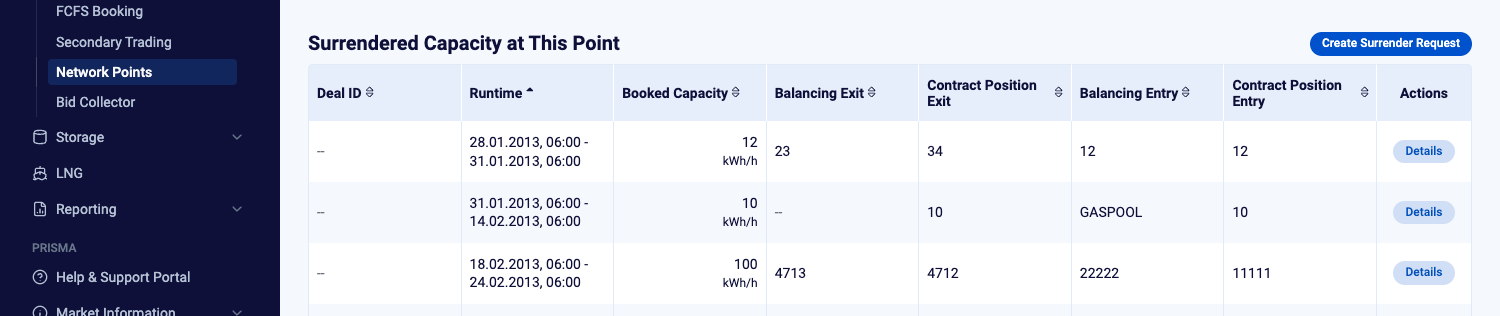
Starting the request from the network point where the capacity is booked.
Either route opens the Create Surrender Request page on the first of three steps:
Specify Surrender Request, Confirm, and a final confirmation screen.
Creating the Surrender Request
Step 1: Specify the surrender request
The Network Point Information card at the top confirms which network point and TSO you are surrendering to, including the direction of the point. Check it before you enter anything, since the wizard is tied to that one network point.
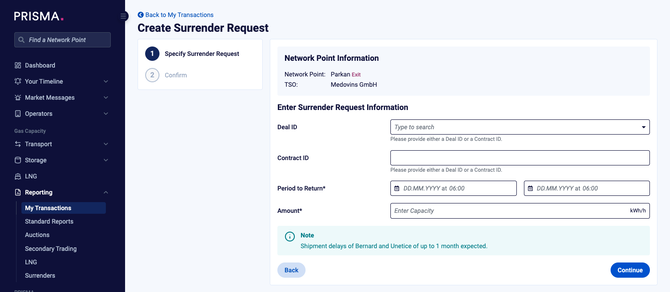
Step 1 identifies the booking and the period you want to return.
Fill in the fields under Enter Surrender Request Information.
| Field | What to enter |
|---|---|
| Deal ID | Select the PRISMA booking you want to surrender. The list holds only your deals that are eligible at this network point. |
| Contract ID | Enter the TSO's contract ID for the capacity, on its own or alongside a Deal ID. This field only appears where the TSO accepts it. |
| Period to Return | Set Period Start and Period End. Both run on gas day boundaries. |
| Amount | Enter the capacity to return, in the network point's flow unit. Use whole numbers, at least 1, and no more than the selected deal holds. |
| Balancing Group/Sub-Balancing Account or Portfolio Code | Select the balancing group or portfolio code the capacity belongs to. This field only appears where the TSO requires or accepts it. |
Where the TSO accepts its own contract IDs, Deal ID and Contract ID are both available to you. One of the two is enough, so you can give whichever you have to hand, and you can give both if it helps the TSO match the request against its own records. Where the TSO does not accept its own contract IDs, Deal ID is mandatory and Contract ID does not appear at all.
Selecting a Deal ID saves you the rest of the form. PRISMA fills Period to Return with the deal's runtime, Amount with its full capacity, and the balancing group or portfolio code the deal already carries, which it then locks. Adjust the period and the amount if you only want to return part of the booking.
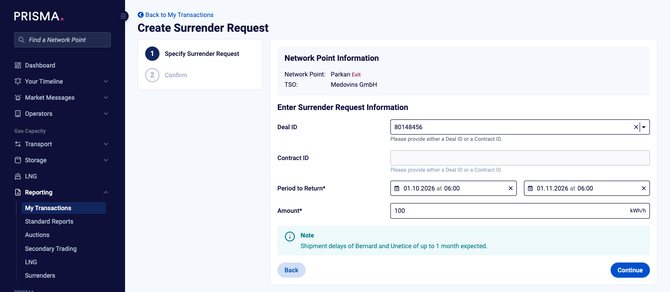
Selecting a Deal ID fills in the period and the amount from the booking.
Where the TSO manages capacity by balancing group or portfolio code, the corresponding field appears below Amount. Whether you have to complete it depends on the length of the period you are returning, because TSOs configure short-term and long-term surrender separately.
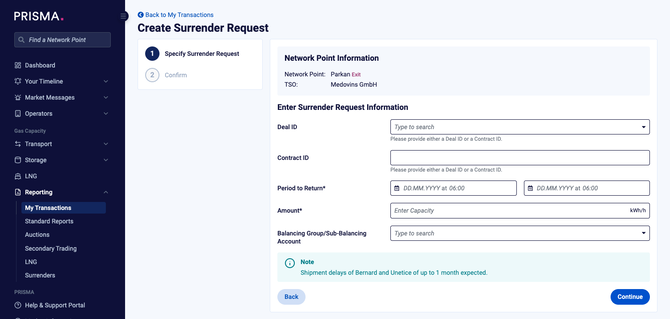
TSOs that manage capacity by balancing group add a field for it.
Some TSOs add their own note to this step, which appears as a Note box under the form. Read it before you continue, since it often carries instructions that apply outside PRISMA.
Three restrictions govern the period you can enter:
- Lead time: the earliest Period Start you can pick is today's gas day plus the lead time the TSO requires. Once the TSO's daily cutoff time has passed, the earliest start moves on by another day. PRISMA blocks earlier dates in the date picker.
- Term: a period of up to 25 hours counts as short term, and anything longer counts as long term. A TSO can enable one and not the other, in which case PRISMA rejects a period of the wrong term.
- Whole months: where the TSO allows long-term surrender in whole months only, Period Start and Period End both have to fall on the first day of a month.
Click Continue when the form is complete.
Step 2: Confirm and submit
The Confirm Surrender Request step repeats the network point and everything you entered under Your Request. Nothing is editable here, so use Back if a figure is wrong.
Tick the box confirming that you have read and accept the TSO's General Terms and Conditions, then click Create Surrender Request.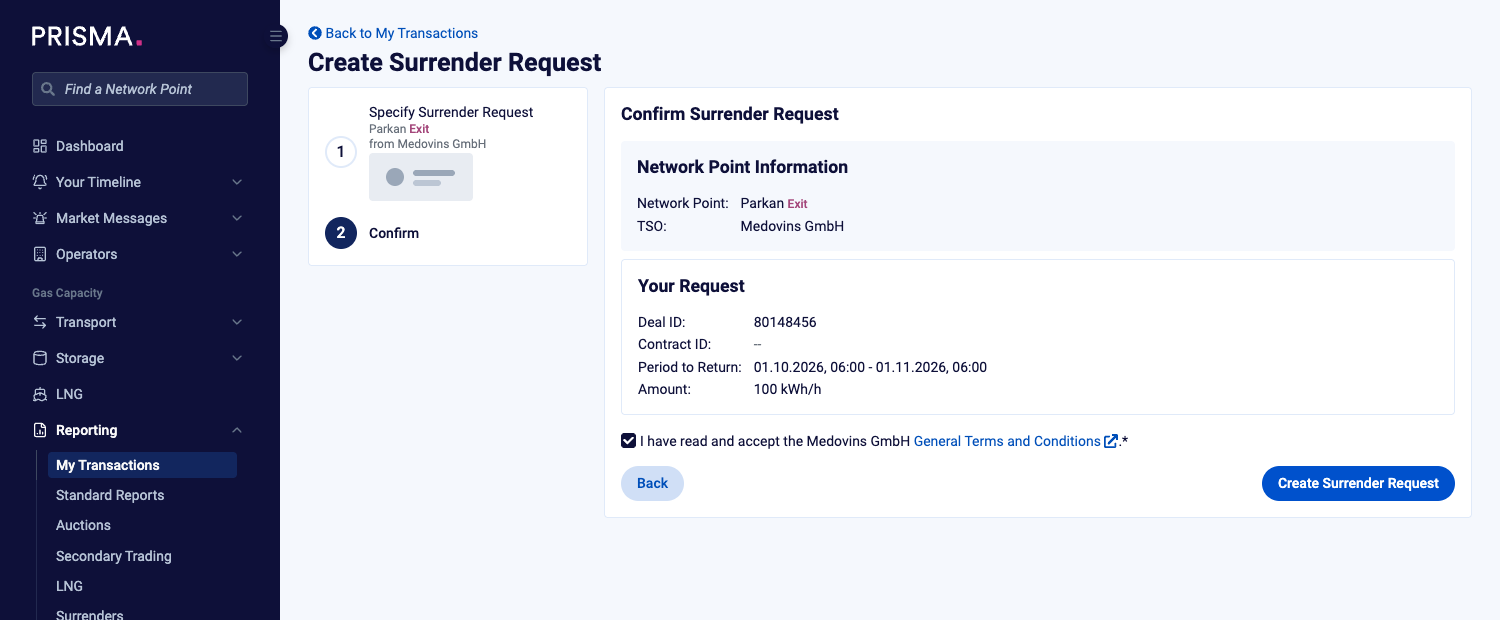
Step 2 of the wizard showing the request summary, the terms and conditions checkbox, and the Create Surrender Request button.
You cannot submit the request without accepting the TSO's General Terms and Conditions.
PRISMA now sends the request to the TSO and waits for an answer. This takes up to 3 minutes, during which a Surrender Request window shows the current status and the Surrender Request Process ID. You can close that window without cancelling anything: the same status stays visible in a Processing box on the page.
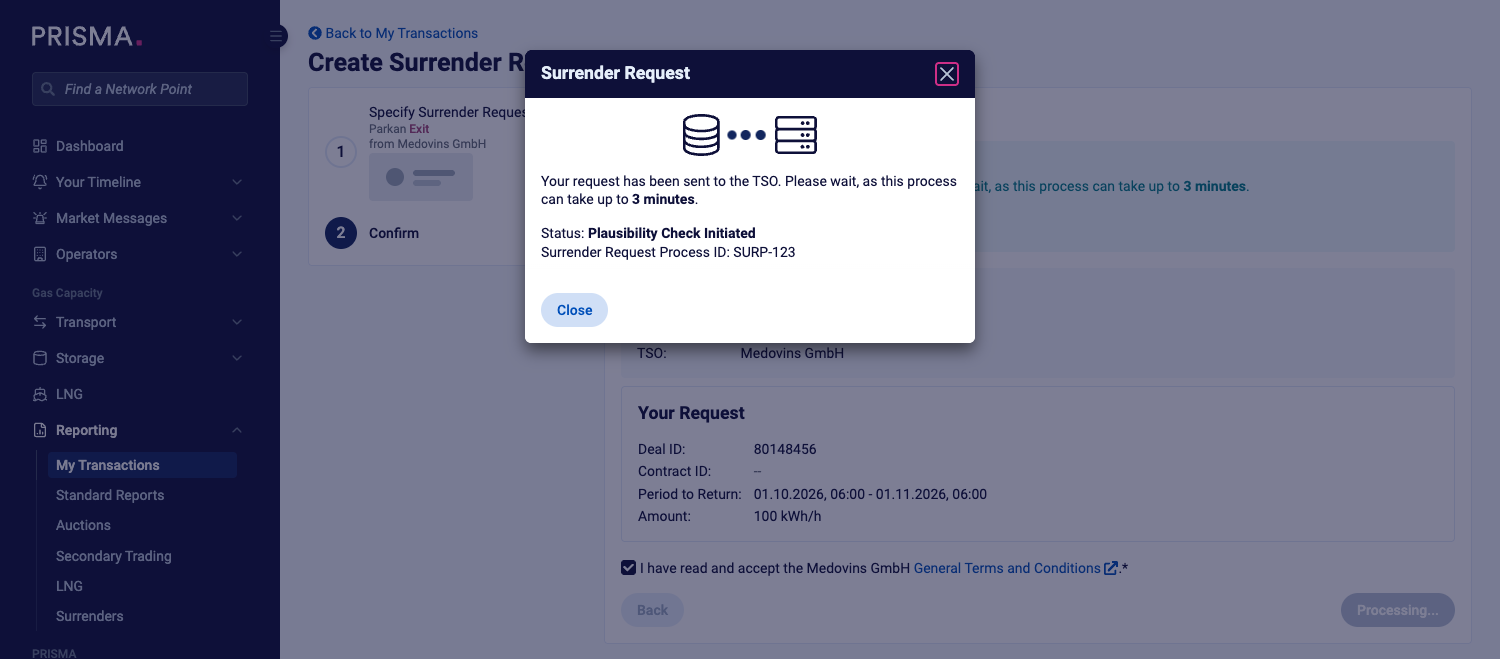
PRISMA reports the status while the TSO processes the request.
Three outcomes are possible:
- Acknowledged: the TSO acknowledges the request and PRISMA moves you to the confirmation step.
- Rejected: the TSO rejects the request, and PRISMA shows the reason in a Surrender Request Rejected message. Your entries are kept, so you can go back, adjust them, and submit again.
- Timed out: no answer arrives within 3 minutes. PRISMA reports that the request timed out, and you can try again later.
Step 3: Confirmation
Surrender Request Sent Successfully confirms that the TSO has acknowledged the request. The card shows the surrender request identifier, who created it and when, the network point details, and the surrender information you submitted.
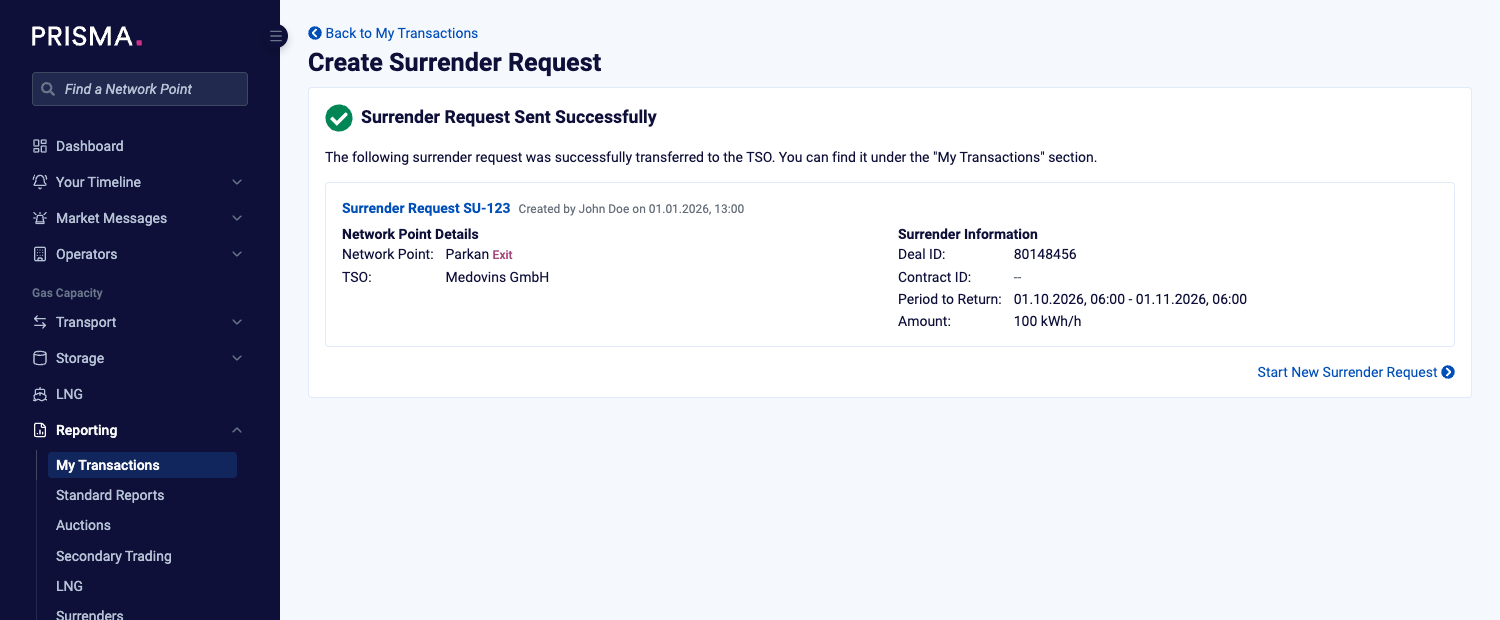
The confirmation step shows the acknowledged request and its identifier.
To surrender more capacity at the same network point, click Start New Surrender Request, which clears the wizard and returns you to step 1.
Your request is now listed in My Transactions.
After You Submit
An acknowledgement means the TSO has taken the request, not that the capacity has been placed with another shipper. What you learn after that depends on how the capacity is managed.
Until the surrendered capacity is actually remarketed, you remain the holder of it and of the obligations attached to it.
Requests forwarded to the TSO
For most surrenders, PRISMA forwards the request and the TSO handles the capacity in its own systems. You get one notification confirming the request reached the TSO, with the status Successfully Forwarded.
A forwarded request is confirmed as sent to the TSO, and nothing further is reported in PRISMA.
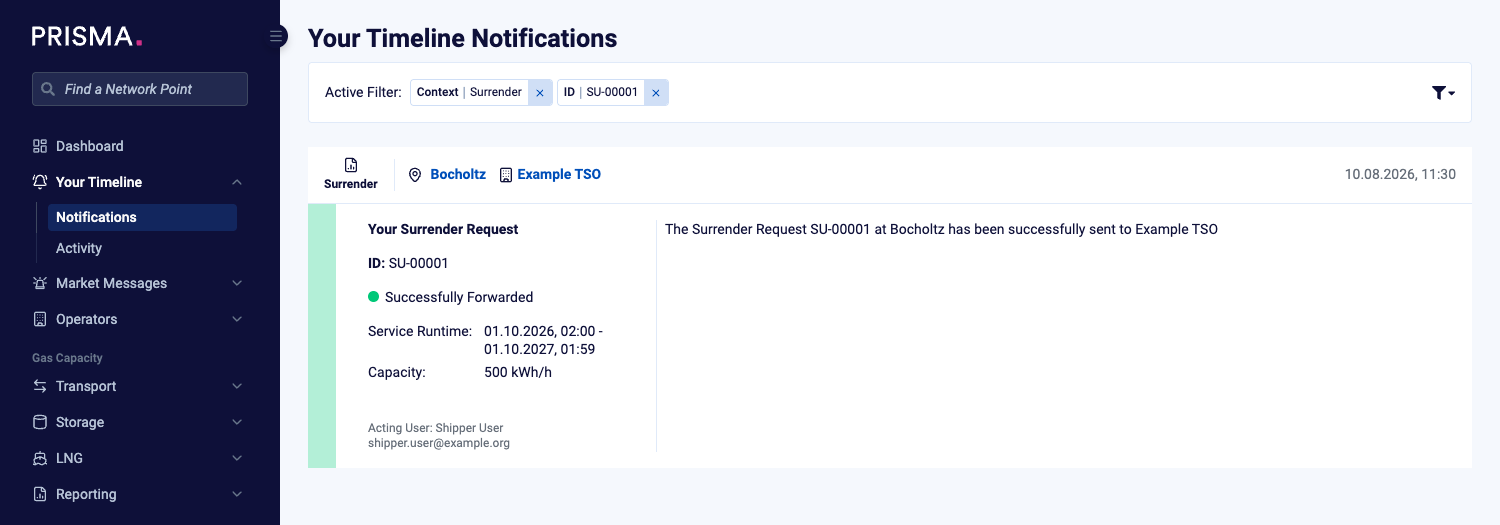
Timeline notification titled Your Surrender Request with the status Successfully Forwarded and a message confirming the request was sent to the TSO.
PRISMA does not receive the result of the remarketing in this case, so it cannot show you whether the capacity sold. Contact the TSO directly if you need to know.
Capacity Management allocations
Where the capacity you surrendered is a Capacity Management allocation (TSO), PRISMA remarkets it on the TSO's behalf and reports the result as one of the following.
| Status | What it means |
| Successful | PRISMA remarketed all of the capacity you returned. |
| Partially Successful | PRISMA remarketed part of the capacity you returned. The rest stays with you. |
| Unsuccessful | PRISMA could not remarket the capacity, so it stays with you |
Remarketing outcomes are reported for Capacity Management allocations only.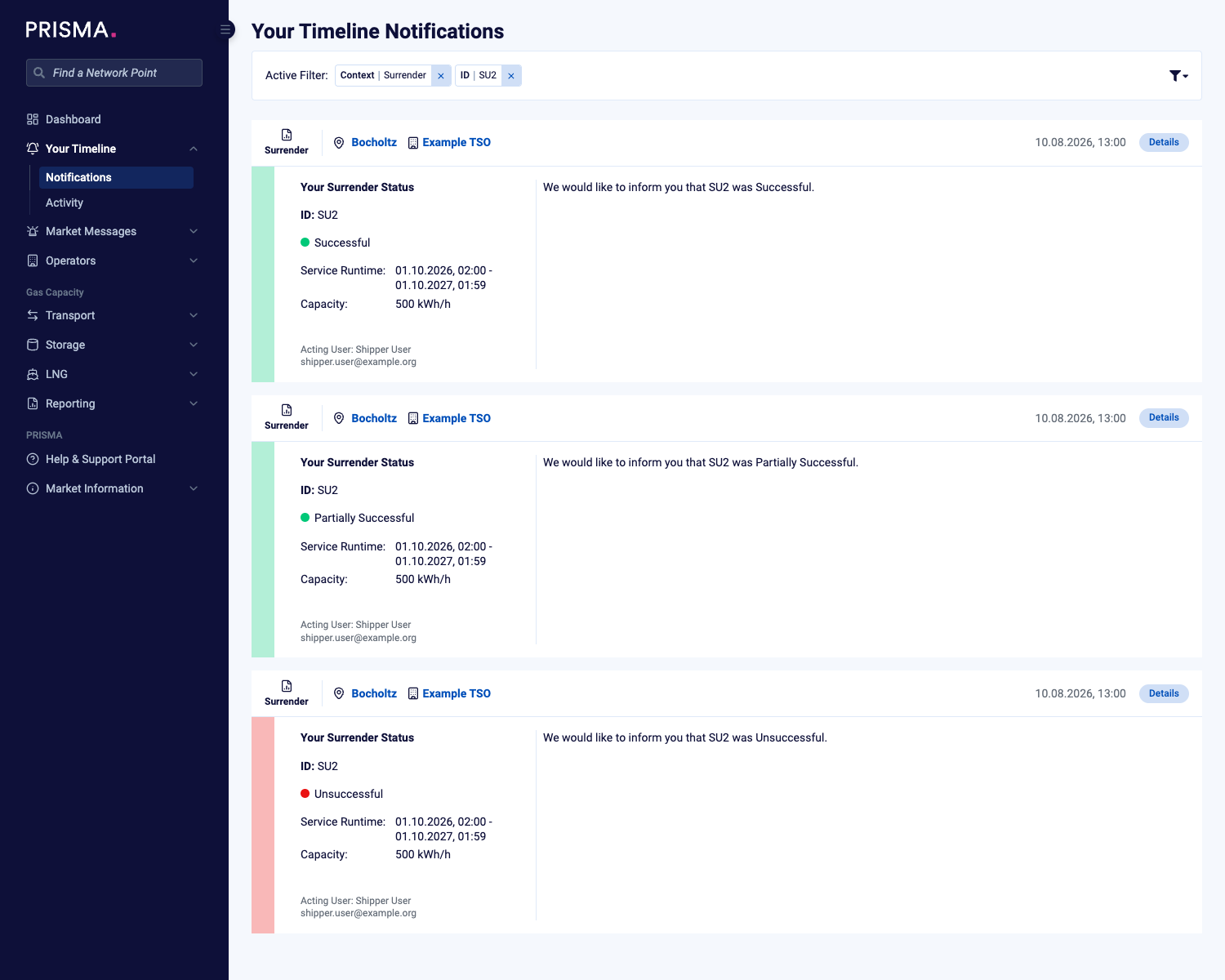
Timeline notifications titled Your Surrender Status showing successful, partially successful and unsuccessful remarketing outcomes.
Notification settings
Surrender updates arrive in Your Timeline, under Notifications. Each one names the network point, the TSO, the surrender identifier, and the status.To change which surrender notifications reach you, open your notification settings and adjust the Surrender options:
New Surrender Request Updates covers requests as they are raised, and Surrender Request Processed covers the result.
When Surrender Is Not Available
Where you cannot create a surrender request, the wizard still opens but the form is locked and a Surrender Request Not Available message explains the reason.
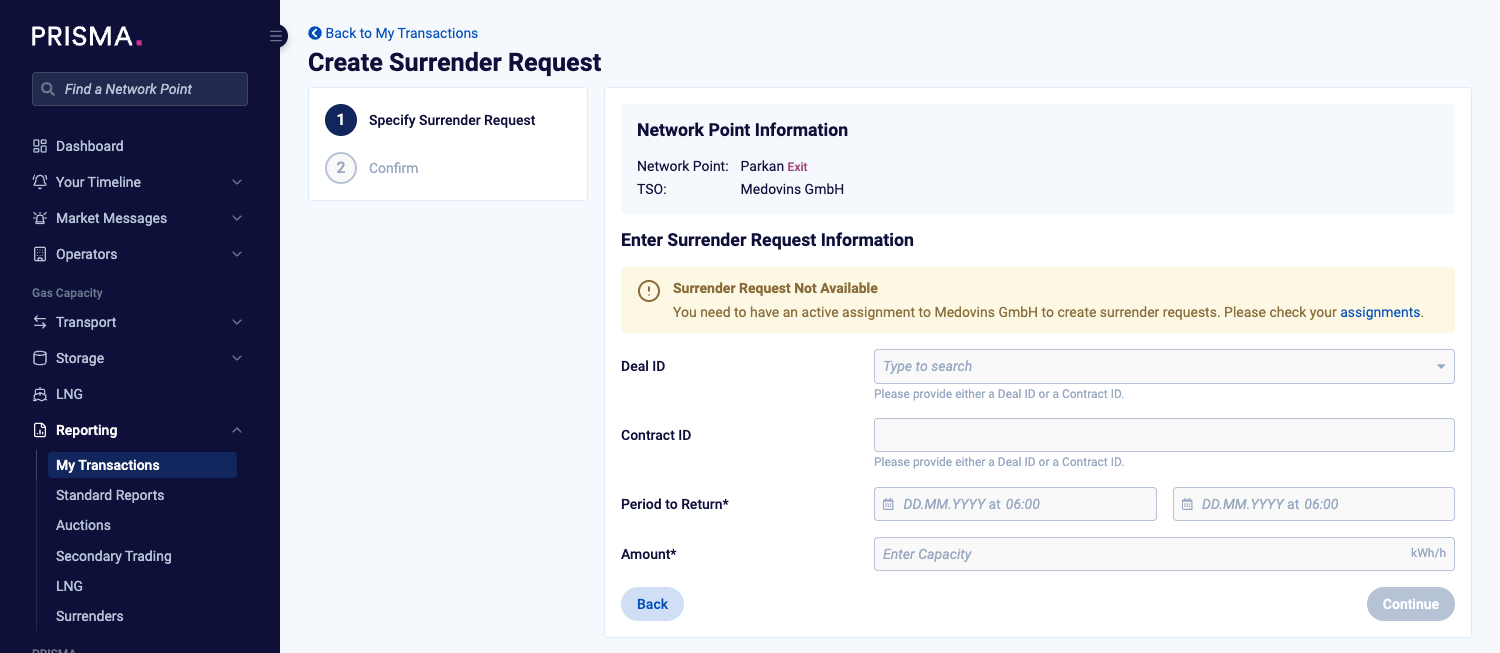
PRISMA states why a surrender request cannot be created instead of failing on submission.
| Message | What to do |
|---|---|
| You need an active assignment to the TSO | Request an assignment to that TSO, or wait for a pending one to be approved. |
| Surrender requests are disabled during active maintenance windows | Wait for the TSO's maintenance window to end, then try again. |
| Surrender is not enabled for this network point | The TSO has not switched surrender on, which means none of its network points can be surrendered. Contact the TSO if you expected it to be available. |
| No Deal IDs are available to surrender at this network point | You hold no eligible booking at that point. Check that you selected the right network point and direction. |
| No Balancing Group or Portfolio Code options are available | You have no balancing group or portfolio code assigned for the surrender terms the TSO has enabled. Contact the TSO to have one assigned. |
| TAG network points cannot be surrendered using this path | Surrender at TAG network points follows a separate process. |
| A surrender request cannot be created for this network point | Contact PRISMA support with the network point and the TSO. |