
Overview
Capacity reshuffling lets you offset the monetary value of firm capacity you have just booked against capacity you already hold under a long-term contract. In return, PRISMA frees an equivalent amount of capacity from that existing contract and returns it to the Transmission System Operator (TSO), which makes it available again in later auctions.
You submit a reshuffle request from the My Transactions page. The TSO then reviews it and either approves or rejects it. Nothing changes on your contracts until the TSO approves the request.
How Capacity Reshuffling Works
A reshuffle always involves two transactions:
- The newly booked capacity: the short-term product you have just acquired, which triggers the reshuffle.
- The existing contracted capacity: the long-term contract you want to offset it against.
- The reshuffle credit: the monthly reduction applied to the existing contract's Monthly Statement.
PRISMA calculates the credit using the regulated tariff only. Multipliers, auction surcharges and other fees are excluded, in line with §6a(2).
What Can Be Reshuffled
Both sides of the reshuffle have to qualify. PRISMA checks eligibility when you start a request and again when you submit it, so a transaction that was eligible yesterday may not be eligible today.
| Requirement | Newly booked capacity | Existing contracted capacity |
|---|---|---|
| Product type | Monthly, Quarterly or Yearly | Contract runtime of 1 year or more |
| Capacity category | Firm | Fixed freely allocable (FZK) or dynamically allocable (DZK) |
| Network point | Belongs to TAG | Belongs to TSO |
| Direction | Entry or exit | Entry or exit |
| Timing | Allocated within the last 10 days | No timing limit |
| Runtime | Ends before the end of the next gas year | No runtime limit |
Two further rules apply to both sides. Capacity that you have converted, or asked to convert, cannot be reshuffled, and capacity with an open surrender request cannot be reshuffled either. Conversion and reshuffling are mutually exclusive for the same runtime.
The network point and direction of the newly booked capacity must differ from at least one of your multi-year transactions. If an annual product spans several gas years, you can only reshuffle the first gas year of it.
Note: Overdue invoices do not block your request. PRISMA flags them to the TSO, which decides case by case.
What counts as free capacity
Not all of the capacity on an existing contract is available to reshuffle. PRISMA works out your free capacity by taking the total contracted capacity and deducting capacity that is already committed elsewhere:
- Capacity already reshuffled, and capacity reserved by a pending reshuffle request.
- Capacity allocated to balancing groups.
- Capacity already approved for surrender.
- Capacity committed in secondary market transactions.
You can use the same transaction in more than one reshuffle request, as long as enough free capacity remains.
The 10-day deadline
You have 10 calendar days from the allocation of the newly booked capacity to submit your request. PRISMA measures this from the allocation timestamp, not from the auction date or the runtime start.
Requesting a Reshuffle
To start a request, go to Reporting and then My Transactions, find the newly booked transaction, and select Create Reshuffle Request from its actions. The request runs through four steps.
Step 1: Confirm the newly booked capacity
PRISMA pre-fills this step from the transaction you selected, so there is nothing to enter. Check that the Deal ID, Network Point, Runtime and Available Capacity match the product you intended to reshuffle, then click Next.
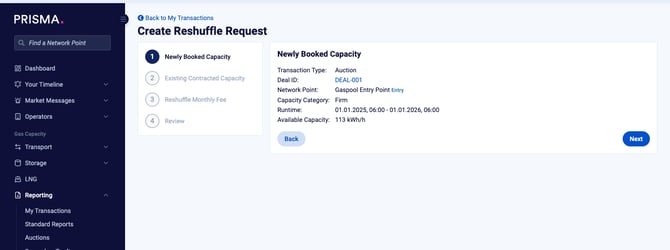
Step 1 confirms the newly booked capacity that triggers the reshuffle.
Step 2: Select the existing contracted capacity
Choose the long-term contract you want to offset against from the Existing Contracted Capacity list. PRISMA only lists contracts that pass every eligibility check at that moment.
When only one contract qualifies, PRISMA selects it for you. The Transaction Details panel then shows its network point, capacity category, runtime and available capacity so you can confirm you have the right one.
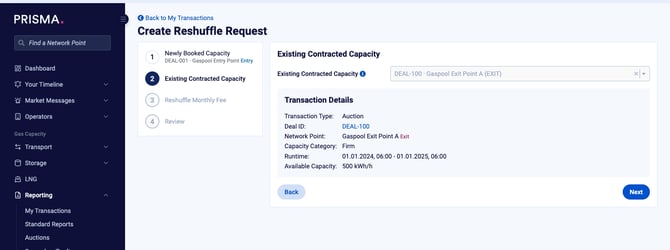
When one contract qualifies, PRISMA selects it and shows its details.
If nothing qualifies, PRISMA tells you so rather than showing an empty list. The most common reasons are that the capacity is already committed to a balancing group or a secondary trade, that it has been converted, or that a surrender request is open against it.
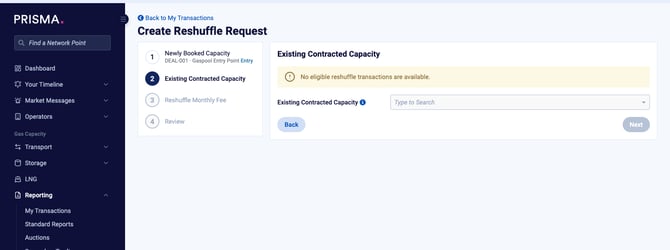
PRISMA states when no eligible contract is available instead of showing an empty list.
Eligibility is re-checked when you submit. If your newly booked capacity stops qualifying while you are filling in the request, for example because the 10-day window closes, PRISMA blocks the request at that point.
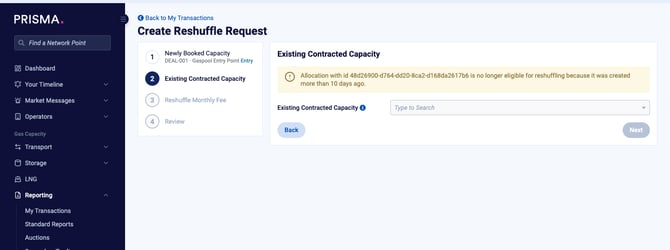
PRISMA warns you when the selected allocation is no longer eligible.
Step 3: Enter the reshuffle monthly fee
This step asks for a monetary value, not a capacity amount. Enter the monthly fee you want to pay in the Reshuffle Monthly Fee field, in euros.
The Reshuffle Runtime is fixed to the runtime of the newly booked capacity and you cannot change it. As you type, PRISMA converts your figure into capacity on both sides and shows the result in two cards:
- Reshuffled to Newly Booked Capacity: how much of the new product the fee covers.
- Freed From Existing Contracted Capacity: how much capacity PRISMA will return to the TSO from the existing contract.
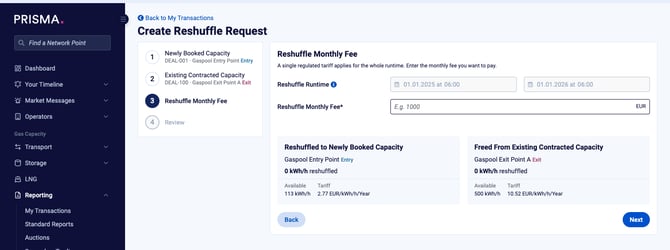
Step 3 converts the monthly fee you enter into capacity on both sides of the reshuffle.
The fee is capped. The ceiling is the maximum credit the free capacity on your existing contract can generate at its regulated tariff. If you enter more than that, PRISMA holds the figure at the ceiling and tells you the credit limit is binding.
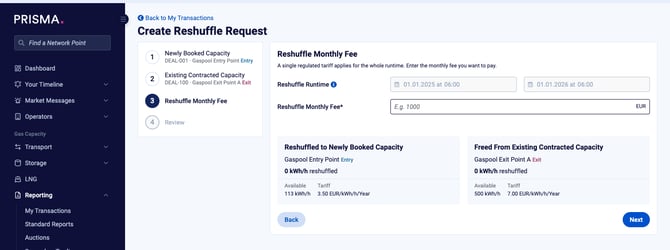
PRISMA caps the fee at the maximum credit the existing contract can generate.
Step 4: Review and submit
The Review step shows both sides of the reshuffle together with the applied regulated tariff and the estimated monthly fee. Check the figures, then submit.
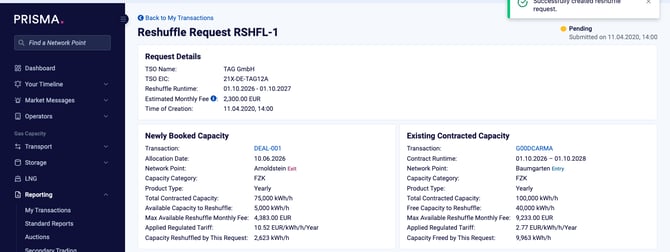
PRISMA confirms the request once you submit it.
You cannot edit a request after you submit it. If you spot a mistake, ask TAG to reject the request, then submit a new one. You can only do this while you are still inside the 10-day window.
After You Submit
While the request is pending
Your request appears in My Transactions with the status Pending, and the capacity it covers is reserved. Reserved capacity cannot be used for another reshuffle request, allocated to a balancing group, traded on the secondary market, converted or surrendered until the request is resolved.
Open the request to see both sides in full, including the Applied Regulated Tariff, the Estimated Monthly Fee and the exact capacity each side commits.
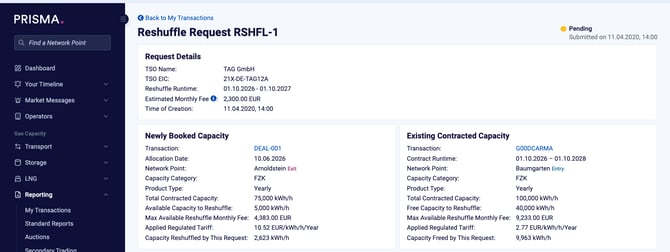
The detail page shows both sides of a pending request and the tariff applied to each.
If the TSO approves
PRISMA executes the reshuffle and applies the downstream effects:
- The reshuffled capacity is released from your existing contract and returned to the TSO.
- The TSO offers that capacity again in later auctions.
- PRISMA creates a new transaction of type Reshuffle, visible in My Transactions.
- The reshuffle credit reduces the Monthly Statement for the existing contract.
You are still invoiced normally for both the new and the existing product. The credit appears as a reduction on the existing contract rather than as a separate credit note.
If the TSO rejects
The TSO has 5 days to review your request. If it does not respond within that time, PRISMA rejects the request automatically.
A rejection is final for that request, and the TSO gives a reason for it. The reserved capacity is released immediately and becomes available again for reshuffling, balancing group allocation, secondary trades, conversion and surrender. You can submit a fresh request for the same transaction and amount, provided the 10-day window has not closed.
If a long-term contract is later cancelled, PRISMA cancels any reshuffle requests that drew on it.
Notifications
PRISMA notifies everyone in your organisation who holds the reshuffling permission and has notifications switched on. You receive a notification when a request is submitted, and again when it is approved or rejected.
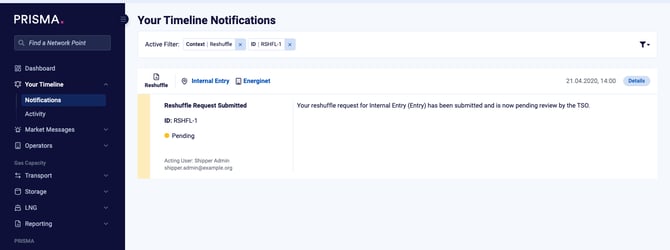
Reshuffle notifications appear in Your Timeline.
To change which reshuffle notifications you receive, go to your notification settings and adjust the Reshuffle Requests options.