As no system can be perfect, there might be moments when you see an error message while using the PRISMA platform.
In such cases, it would be much appreciated if you could provide a screenshot of your browser console when reporting the error to us. This would allow us to speed up the error analysis.
Here you'll find instructions on how to capture screenshots of error codes to submit for further analysis. These screenshots will help us to identify problems in the platform with greater precision and speed.
Instructions
1. Press F12 on your keyboard to open the "Developer Tool".
Alternatively, you can right-click with your mouse and select "Inspect":
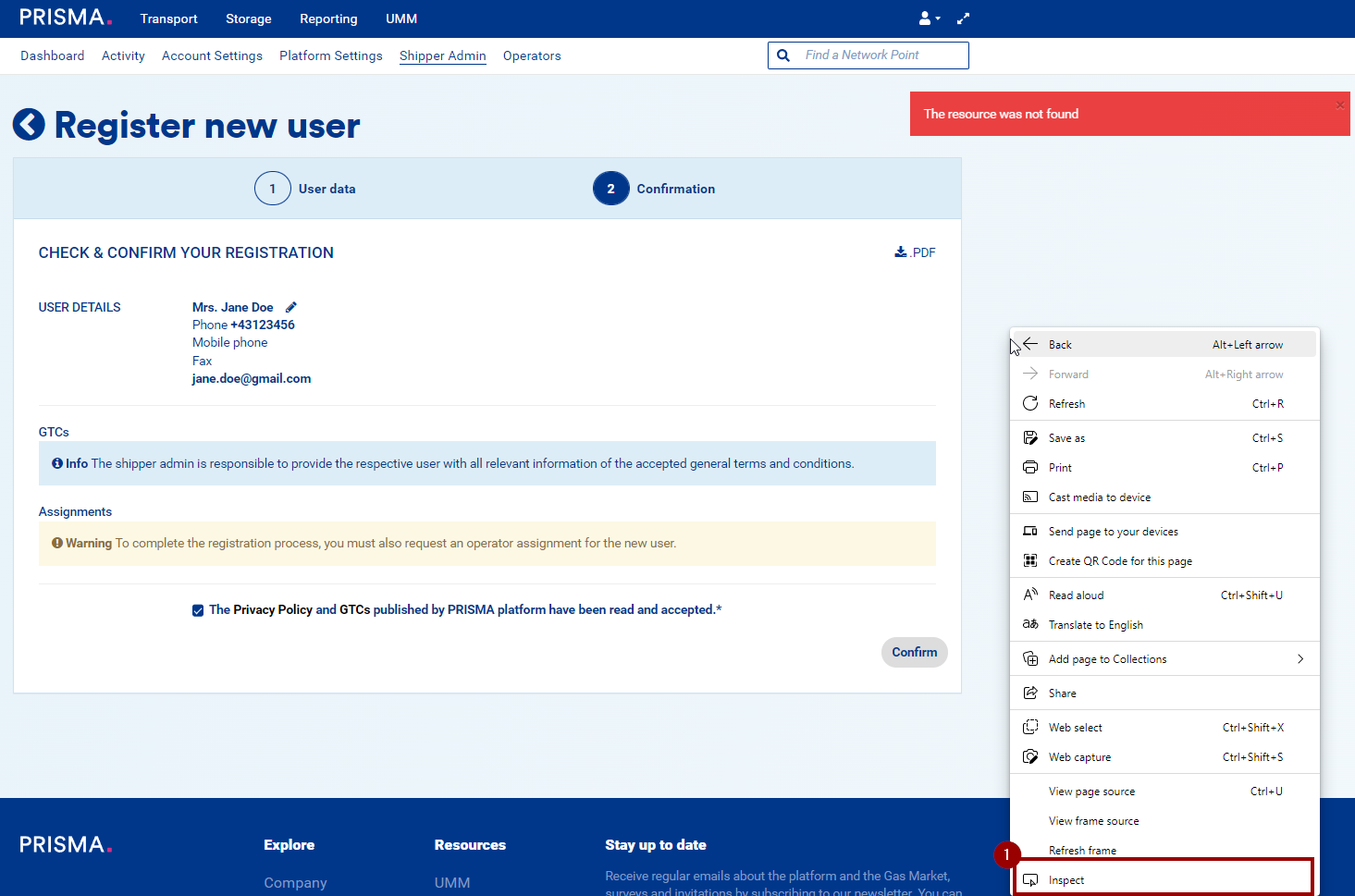
Alternatively, you can right-click with your mouse and select "Inspect":
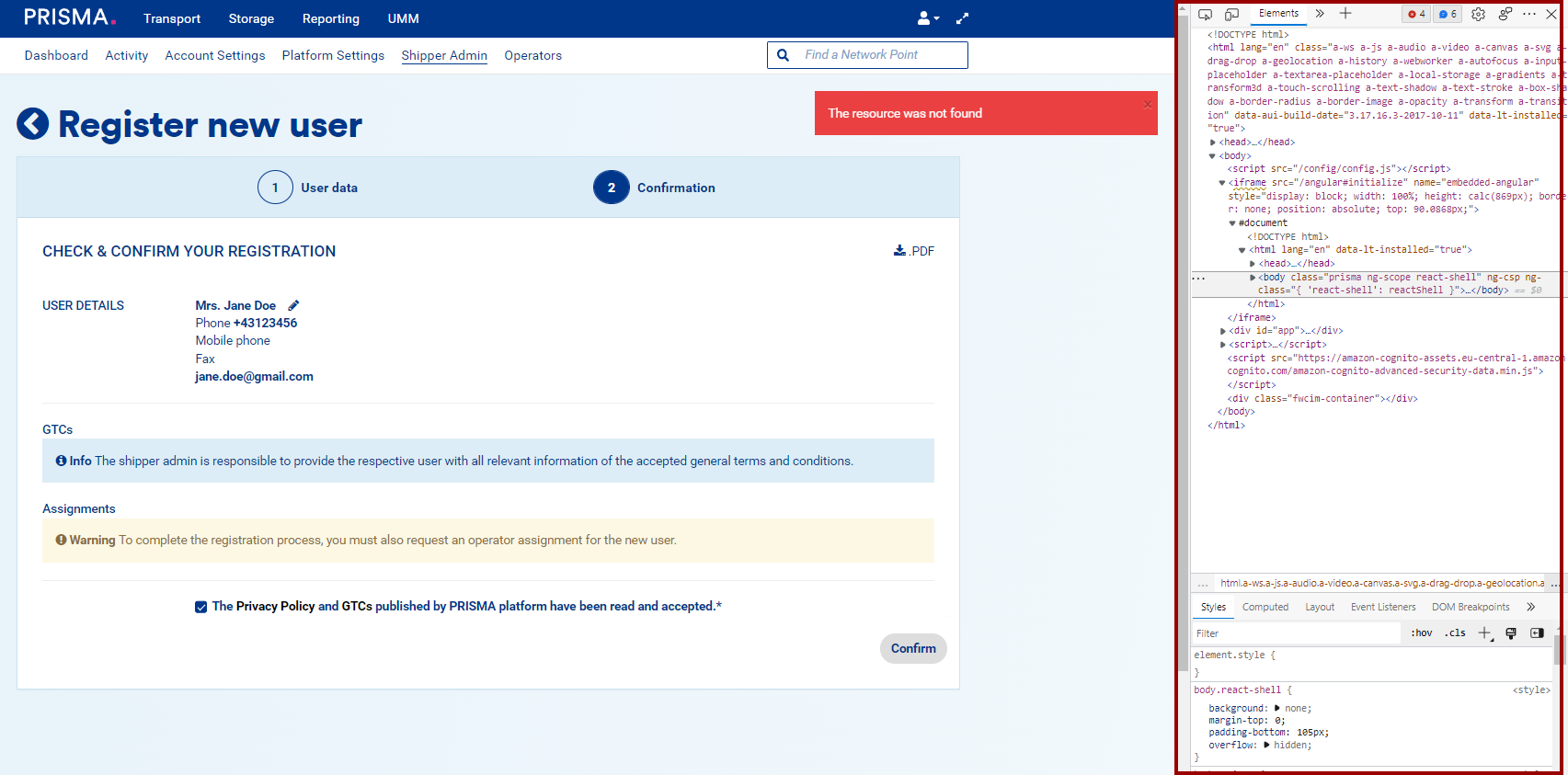
The developer tool will open:
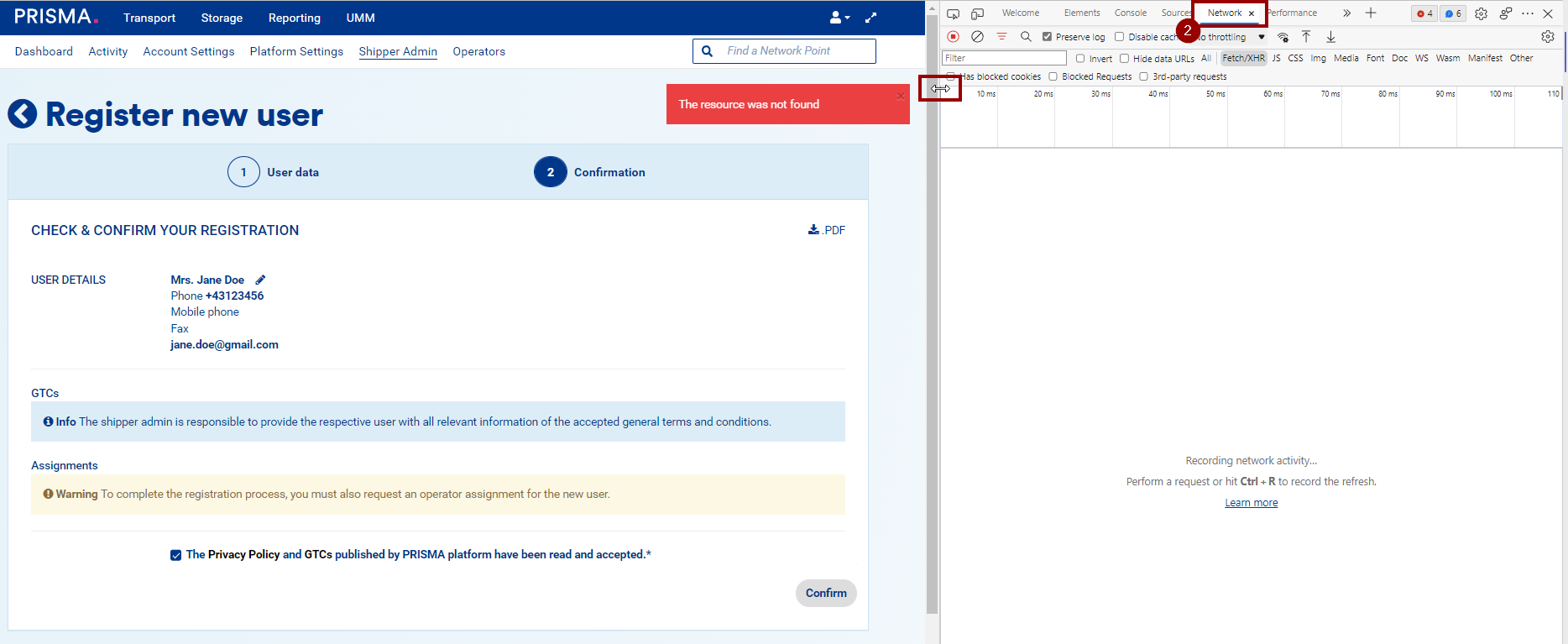
2. Click on the "Network" tab. If you don't see it, you might have to expand your current view of the developer tool:
3. Repeat the action for which you received an error -- registration, bid, upload etc.
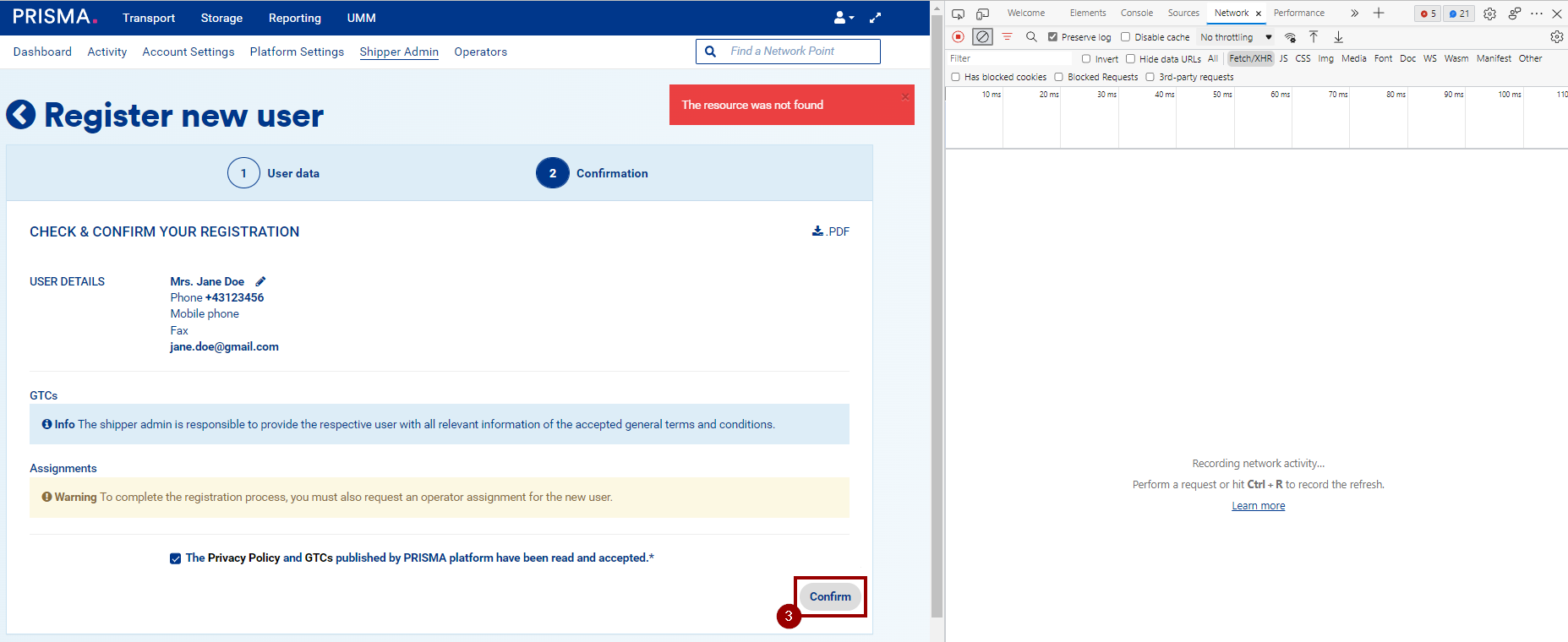
4. See if there is an error message in the list on the "Developer Tool":

5. Click on it and select the tab "Preview":
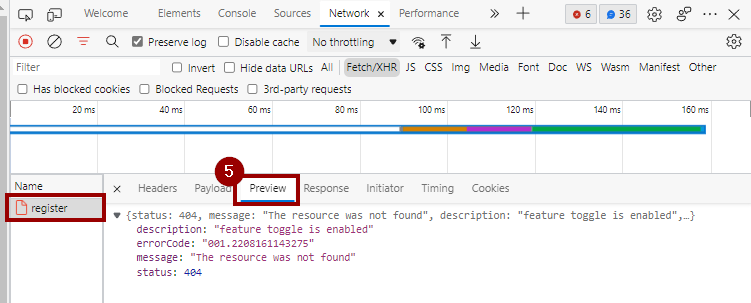
6. Take a screenshot of the preview and send it to us as attachment to your email.
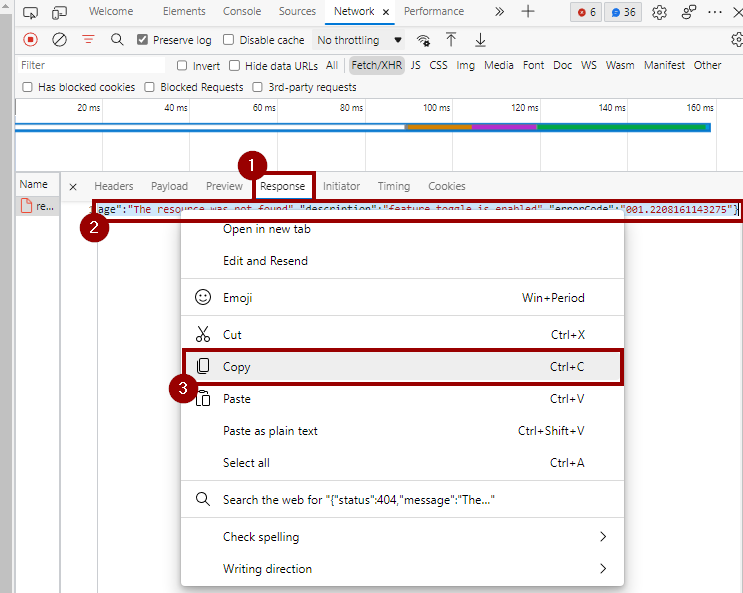
7. Alternatively, you can also click on the "Response" tab, select the error message and copy-paste it in the email you will send to us: